


Live caption AI voice to text is the real-time conversion of spoken audio into written text using AI-powered speech recognition models, typically achieving sub-second latency. VideoSDK integrates live transcription directly into its video calling SDKs, enabling developers to add captions to any real-time communication application without managing separate STT infrastructure. To get started, explore VideoSDK's real-time transcription guide and the quickstart for your preferred platform.
Modern speech recognition models now transcribe spoken language with sub-second latency, a threshold that seemed unreachable just three years ago. For developers building communication apps, live caption AI voice to text has shifted from a nice-to-have accessibility feature to a core expectation across video calls, live streams, and in-app dictation workflows.
Whether you are building a telehealth platform that requires captioning for compliance, a live shopping app targeting multilingual audiences, or a productivity tool with voice-driven note taking, understanding how real-time speech-to-text works under the hood determines whether your captions feel natural or lag behind the conversation.
This guide covers the technology stack behind live captioning, compares the leading AI models and platforms, walks through implementation in natural language, and benchmarks the performance you can expect in production as of 2026.
Understanding Live Caption AI Voice to Text Technology
Live caption AI voice to text converts spoken audio into readable text by streaming audio through a neural network trained on millions of hours of speech. The AI model processes incoming audio frames, identifies phonemes and words, applies language modeling to resolve ambiguities, and outputs text that appears on screen within hundreds of milliseconds of the speaker finishing each phrase.
The core distinction in this space is between on-device processing and cloud-based processing. On-device models like OpenAI Whisper (optimized for edge deployment) and Moonshine ASR run directly on the user's hardware, sending no audio data to external servers. Cloud-based models like Google Gemini Transcribe Live and the streaming APIs from Deepgram and AssemblyAI send audio over the network to GPU-equipped inference servers, which typically deliver lower word-error rates and broader language coverage at the cost of network dependency.
VideoSDK bridges both approaches by offering real-time transcription as a built-in feature of its video calling SDK. When a participant speaks in a VideoSDK room, the audio stream is routed through the transcription pipeline and captions are delivered back to all participants through the same SDK event system that handles participant join and leave events. This eliminates the need for developers to wire a separate STT service alongside their WebRTC infrastructure.
According to the W3C WebRTC specification, media streams in a peer connection can be intercepted and processed by intermediate nodes, which is the architectural foundation that makes in-call transcription possible without a separate audio capture mechanism.
Core Components
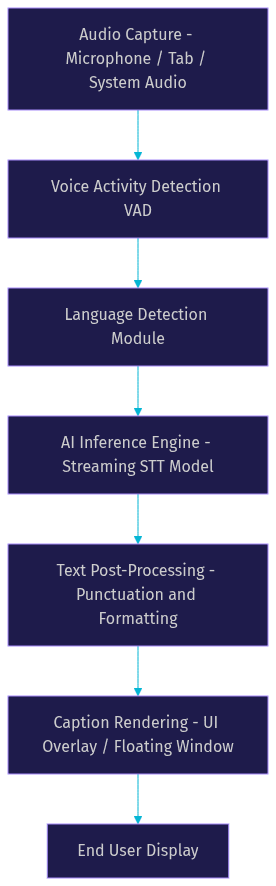
Every live caption AI voice to text system consists of three functional layers, and understanding each one helps you diagnose where latency or accuracy issues originate.
The audio capture layer handles incoming sound from microphones, browser tab capture, or system-wide audio routing. On the web, this involves the MediaDevices API for microphone access and the Chrome Tab Capture API for capturing audio from other browser tabs. On mobile platforms, Android's AudioRecord and iOS's AVAudioEngine serve the same purpose.
The AI inference engine is the brain of the system. It includes the speech recognition model itself, a voice activity detection module that segments speech from silence, and a language detection component that identifies which language is being spoken before routing to the appropriate model. Leading models in 2026 include streaming variants of Whisper, Google Gemini's transcription capabilities, and specialized low-latency models like Moonshine ASR.
The caption rendering layer takes the text output and displays it to the user. This can be a floating overlay window (like Chrome's built-in Live Caption), an integrated UI component within a video call interface, or a subtitle track embedded in a live stream. VideoSDK's Prebuilt UI Kit includes caption rendering out of the box, so developers who use the Prebuilt SDK get visual caption display without writing custom UI code.
Choosing the Right Live Caption AI Voice to Text Solution
Selecting a live caption AI voice to text solution requires evaluating five dimensions that directly affect user experience and operational cost. No single option wins on every axis, so the right choice depends on your specific application constraints.
Latency is the most visible factor. Cloud-based models typically deliver partial transcripts in 200 to 400 milliseconds, while on-device models range from 300 to 600 milliseconds depending on hardware. For conversational use cases like video calls, anything under 500 milliseconds feels responsive. For broadcast-style live streaming, slightly higher latency is tolerable since viewers expect a small buffer.
Language support varies dramatically. Google's models cover over 125 languages. OpenAI Whisper supports 99 languages. Smaller models like Moonshine ASR focus on English with plans for expansion. If your app serves a global audience, language coverage may eliminate certain options immediately.
Privacy requirements dictate whether on-device processing is mandatory. Healthcare, legal, and enterprise applications often require that audio never leaves the user's device. In those cases, cloud-based STT is ruled out regardless of its accuracy advantages.
Platform compatibility matters for deployment reach. Chrome Live Caption works only in Chromium-based browsers. Android Live Caption is limited to specific Pixel and Samsung devices. Cross-platform SDKs like VideoSDK abstract these differences by providing a unified transcription interface across React, React Native, Flutter, iOS, and Android.
Cost structures range from free (Chrome Live Caption, on-device Whisper) to per-minute pricing (cloud STT APIs) to included-in-SDK (VideoSDK transcription). Always verify current pricing for each provider before committing to a production budget.
| Solution | Latency | Languages | Privacy | Platform Coverage | Best For |
|---|---|---|---|---|---|
| Google Gemini Transcribe Live | ~0.4s partial | 125+ | Cloud | Web, Android, iOS | Global multilingual apps |
| OpenAI Whisper (on-device) | ~0.5s | 99 | On-device | Web, mobile, desktop | Privacy-sensitive apps |
| Moonshine ASR | ~0.5s | English | On-device | Web, edge devices | Low-resource English captioning |
| Chrome Live Caption | ~0.3s | Limited | On-device | Chromium browsers only | Browser-based quick wins |
| VideoSDK Real-time Transcription | Sub-second | Multi-language | Cloud (configurable) | 10+ SDK platforms | In-call captioning for video apps |
The table above shows that VideoSDK real-time transcription is the strongest choice when you need captions inside a video calling or live streaming application, because the transcription pipeline is already integrated into the room architecture. Standalone STT models win when you need transcription outside of a real-time communication context, such as dictation into a text editor.
Privacy and On-Device Processing
Local processing matters when the audio being captioned contains sensitive information that cannot traverse external networks. Healthcare consultations, legal depositions, internal corporate meetings, and financial advisory calls all fall into this category.
On-device models like Whisper and Moonshine ASR process audio entirely on the user's hardware. No audio packets leave the device, which satisfies HIPAA, GDPR, and most enterprise data residency requirements by design. The tradeoff is that on-device models typically consume 200 to 500 megabytes of memory and require a modern CPU or GPU for acceptable latency.
Cloud-based models offer superior accuracy and language breadth but require trusting a third party with audio data. VideoSDK mitigates this concern by offering configurable transcription pipelines where developers can choose their STT provider, and the REST API allows full control over when transcription starts and stops within a session.
How Do You Implement Live Caption AI Voice to Text with VideoSDK?
Implementing live caption AI voice to text involves five sequential decisions that shape your architecture and determine production reliability. Skipping any of them leads to issues that are expensive to fix after launch.
Step 1: Select an AI Model or Provider
Your model choice depends on the criteria from the previous section. If you are building captions into a VideoSDK-powered video call, the transcription feature is already available through the SDK and you simply need to enable it when creating or joining a room. If you need standalone transcription, evaluate Whisper for on-device use, Deepgram or AssemblyAI for cloud-based streaming, or Google Gemini for multilingual coverage.
Consider the word-error-rate of each model on your target domain. General-purpose models perform well on conversational speech but may struggle with specialized vocabulary like medical terminology or product names. Some providers offer custom vocabulary tuning that lets you supply domain-specific terms to improve recognition accuracy.
Step 2: Set Up Audio Capture
Audio capture differs by platform. On the web, you request microphone access through the browser's permission prompt, which requires HTTPS in production. Tab capture and system audio capture require additional permissions and are subject to browser-specific limitations. On mobile, you configure the platform's audio recording API with appropriate sample rates, with 16 kHz being the standard for speech recognition.
For VideoSDK integrations, audio capture is handled automatically when a participant joins a room and publishes their audio track. The SDK manages the media stream internally, so you do not need to separately handle microphone permissions or audio device selection unless you want to offer pre-call device testing.
Step 3: Integrate the Transcription Stream into a UI Overlay
Once you have a transcription stream, you need to render the text on screen. The two common patterns are floating overlay captions (positioned above or below the video feed) and integrated subtitle bars (positioned at the bottom of the video container).
VideoSDK's SDK emits transcription events that contain the participant ID, the transcribed text, and a timestamp. You listen for these events and update your caption component as new text arrives. The Prebuilt UI Kit handles this rendering automatically, while the custom SDK path gives you full control over caption styling, positioning, and animation.
Step 4: Handle Language Switching and Custom Vocabularies
Multilingual applications need to detect when a speaker switches languages mid-conversation. Some models handle this automatically, while others require you to specify the language upfront. For apps with a known primary language, hardcoding the language reduces latency by skipping the detection step.
Custom vocabularies improve accuracy for domain-specific terms. You supply a list of proper nouns, technical terms, or product names that the model should prioritize during recognition. This is particularly valuable for telehealth apps (medication names), edtech platforms (subject terminology), and enterprise tools (employee names and project codes).
Step 5: Manage Latency and Fallback Strategies
Even the best models experience latency spikes under poor network conditions or high server load. Build fallback strategies that gracefully degrade rather than failing silently. If cloud-based transcription times out, fall back to showing the last successful partial transcript rather than clearing the caption display. If on-device inference slows down due to thermal throttling on mobile, reduce the model complexity or skip non-essential post-processing.
For VideoSDK-based applications, the SDK's network-adaptive streaming already handles bandwidth fluctuations for media, and the transcription pipeline benefits from the same resilience mechanisms. However, transcription latency is separate from media latency, so monitor both independently.
Common Pitfalls
Three issues catch developers off guard when implementing live caption AI voice to text. First, token expiry: if you are using a cloud STT API with session-based authentication, tokens often expire after 30 to 60 minutes, causing transcription to silently stop. Implement token refresh logic before the expiry threshold. Second, permission prompts: browsers require explicit user consent for microphone access, and the prompt can be blocked if triggered too early in the page lifecycle. Always request permissions in response to a user action like clicking a join call button. Third, browser compatibility: the Web Audio API and MediaDevices API have inconsistent implementations across Safari, Firefox, and Chrome. Test on all target browsers early.
Production Considerations
Moving from localhost to production introduces three requirements that catch teams by surprise. HTTPS is mandatory for microphone access in all modern browsers, so your staging and production environments must serve pages over HTTPS. If your audio capture involves WebRTC (as it does with VideoSDK), TURN servers are necessary for participants behind restrictive firewalls. VideoSDK provides managed TURN infrastructure, but standalone STT implementations need their own. Finally, resource caching for on-device models means you should preload the model file during application initialization rather than downloading it on first use, which would cause a multi-second delay before captions begin.
User Experience Enhancements
Beyond basic text display, modern live caption systems offer features that significantly improve comprehension and accessibility. Expressive captions annotate tone and non-speech audio, showing labels like [whispering], [applause], or [laughter] to convey context that text alone misses. Google's Gemini models and Chrome Live Caption both support this feature.
Adjustable caption boxes let users resize, reposition, and customize the appearance of captions. Picture-in-picture mode allows captions to persist even when the user switches away from the application, which is valuable for multitasking during long meetings. Multi-language translation on the fly takes captions a step further by not only transcribing speech but translating it into the viewer's preferred language in real time. VideoSDK's transcription pipeline can be paired with translation services to deliver this experience within video calls.
Real-World Use Cases
Live caption AI voice to text powers four major categories of real-world applications, each with distinct technical requirements.
Live streaming with subtitles for global audiences is the highest-scale use case. Platforms like live shopping apps and virtual event broadcasts use VideoSDK's Interactive Live Streaming with transcription enabled, delivering captions to thousands of concurrent viewers. The captions are also recorded alongside the stream for post-event accessibility compliance.
Video conferencing accessibility has become a legal requirement in many jurisdictions. Zoom, Microsoft Teams, and Google Meet all offer built-in live captions. Developers building custom video conferencing solutions with VideoSDK can match this capability by enabling transcription in their room configuration, with captions displayed through the SDK's participant event system.
In-app dictation for note-taking and coding represents a growing category where developers use voice to text as an input method rather than a display feature. Tools like voice-powered code editors and meeting summary generators capture spoken input, transcribe it, and feed the text into application logic. VideoSDK's post-call transcription and summary capabilities serve this use case by providing both real-time captions and a full transcript after the session ends.
Mobile device accessibility has been transformed by OS-level live captions. Android Live Caption and Apple Live Captions (available on iOS 18 and later) provide system-wide captioning for any audio playing on the device. For developers building mobile apps with VideoSDK's React Native or Flutter SDKs, these OS-level features complement SDK-based transcription by covering scenarios where the app's own captioning is not active.
Performance Benchmarks for Low-Latency Transcription
Independent benchmarks from Artificial Analysis Speech Arena provide the most reliable performance data for live caption AI voice to text models available in 2026, since vendor-published numbers often reflect idealized conditions.
As of mid-2026, Google Gemini 3.5 Transcribe Live achieves approximately 0.4 seconds partial transcript latency and a word-error-rate of 4.1% on conversational English audio. OpenAI Whisper Large v3, when optimized for streaming with a sliding window approach, reaches approximately 0.5 seconds latency with a word-error-rate of 5.3%. Moonshine ASR, designed specifically for low-resource edge deployment, delivers 0.5 seconds latency at a 6.2% word-error-rate on English. These figures shift frequently as models update, so verify current benchmark data before making architectural decisions.
For non-English languages, word-error-rates typically increase by 2 to 5 percentage points depending on the language and available training data. Languages with complex morphology (like Finnish or Turkish) and tonal languages (like Mandarin or Vietnamese) present the greatest challenges for current models.
Reliability under unstable network conditions depends on your architecture. Cloud-based transcription should implement exponential backoff for failed audio chunk uploads and buffer audio locally during network interruptions. On-device models are immune to network issues but are vulnerable to thermal throttling on mobile devices, which can cause sudden latency spikes after 10 to 15 minutes of continuous use. VideoSDK's transcription pipeline includes automatic reconnection for cloud-based STT, so captions resume without manual intervention after brief network drops.
Future Trends in Live Caption AI Voice to Text
The live caption AI voice to text landscape is evolving rapidly in three directions that developers should track for roadmap planning.
Emerging multimodal models are beginning to process audio and video jointly, which enables captions that incorporate visual context. For example, a model that sees a speaker pointing at a chart can generate more accurate captions by disambiguating references like "this" or "that" using visual cues. Google's Gemini models are at the forefront of this research, and VideoSDK's custom video track feature positions developers to take advantage of multimodal transcription as it matures.
Edge-AI hardware acceleration is making on-device transcription viable on a broader range of devices. Apple's Neural Engine, Qualcomm's Hexagon DSP, and dedicated AI accelerators in modern laptops are reducing on-device inference latency to match cloud-based performance. This trend will gradually eliminate the latency advantage of cloud STT for common use cases.
Community-driven custom vocabularies represent a shift from vendor-controlled language models to collaboratively maintained domain glossaries. Open-source projects on GitHub are already building shared vocabulary packs for medical, legal, and technical domains that can be loaded into on-device models like Whisper. This approach democratizes accuracy improvements that were previously available only through paid custom model training.
Definitions Glossary
Live Caption AI Voice to Text: The real-time conversion of spoken audio into written text using AI-powered speech recognition models, typically achieving sub-second latency for conversational speech.
Voice Activity Detection (VAD): A signal processing technique that segments speech from silence in an audio stream, allowing the AI model to process only relevant audio chunks and reduce unnecessary computation.
Streaming STT: A speech-to-text architecture that processes audio in continuous chunks rather than waiting for the complete recording, enabling partial transcript output before the speaker finishes talking.
Word-Error-Rate (WER): The standard metric for measuring speech recognition accuracy, calculated as the percentage of words incorrectly transcribed relative to the total words spoken.
VideoSDK Real-time Transcription: A built-in feature of VideoSDK's video calling SDKs that transcribes participant speech within a room and delivers caption text through SDK events to all connected participants.
On-Device Processing: A transcription approach where the AI model runs locally on the user's hardware, ensuring no audio data leaves the device and satisfying strict privacy requirements.
Key Takeaways
- Live caption AI voice to text achieves sub-second latency in 2026, making real-time captions practical for conversational applications like video calls and live streaming.
- On-device models like Whisper and Moonshine ASR prioritize privacy, while cloud-based models like Gemini Transcribe Live offer broader language coverage and lower word-error-rates.
- VideoSDK's real-time transcription feature integrates captioning directly into its video calling SDK, eliminating the need for developers to wire a separate STT service alongside their WebRTC infrastructure.
- Production deployments require HTTPS for microphone access, TURN servers for firewall traversal, and token refresh logic for cloud-based STT APIs.
- Custom vocabularies and expressive captions significantly improve user experience for domain-specific and accessibility-focused applications.
Conclusion
Live caption AI voice to text has matured from an experimental accessibility feature into a production-ready capability that developers can integrate in hours rather than weeks. Whether you choose an on-device model for privacy-sensitive applications or leverage VideoSDK's built-in transcription for video calling and live streaming, the technology is ready for real users today.
Ready to add live captions to your application? Start with the VideoSDK real-time transcription guide and the quickstart for your platform. You can sign up for a free account at app.videosdk.live/login and join the VideoSDK Discord community to connect with thousands of developers building real-time communication experiences.
What are you building with live caption AI voice to text? Drop a comment below, I'd love to hear what kind of captioning use case you're working on.
Free $20 Balance for AI Voice Agents & Video Calls
FAQ