



TL;DR: A video-based auto insurance claim adjustment system replaces physical field visits with a live two-participant video call. The claimant streams vehicle damage from a mobile app, the adjuster reviews it in real time from a web interface, and the session is recorded to cloud storage as an audit trail. VideoSDK provides the room API, SDKs, and recording infrastructure to build this in a single day.
Video-based auto insurance claim adjustment is a method where claimants submit vehicle damage evidence over a live, recorded video call instead of waiting for a physical inspection. An adjuster joins the same session remotely, reviews the stream, and logs the claim decision. This reduces average claim cycle time and eliminates the cost of field visits.
This guide walks you through building exactly that: a two-participant VideoSDK session where a claimant shares a live rear-camera view of vehicle damage and an adjuster reviews it from a browser-based interface, with cloud recording enabled throughout.
System design
The workflow involves two roles and four ordered steps.
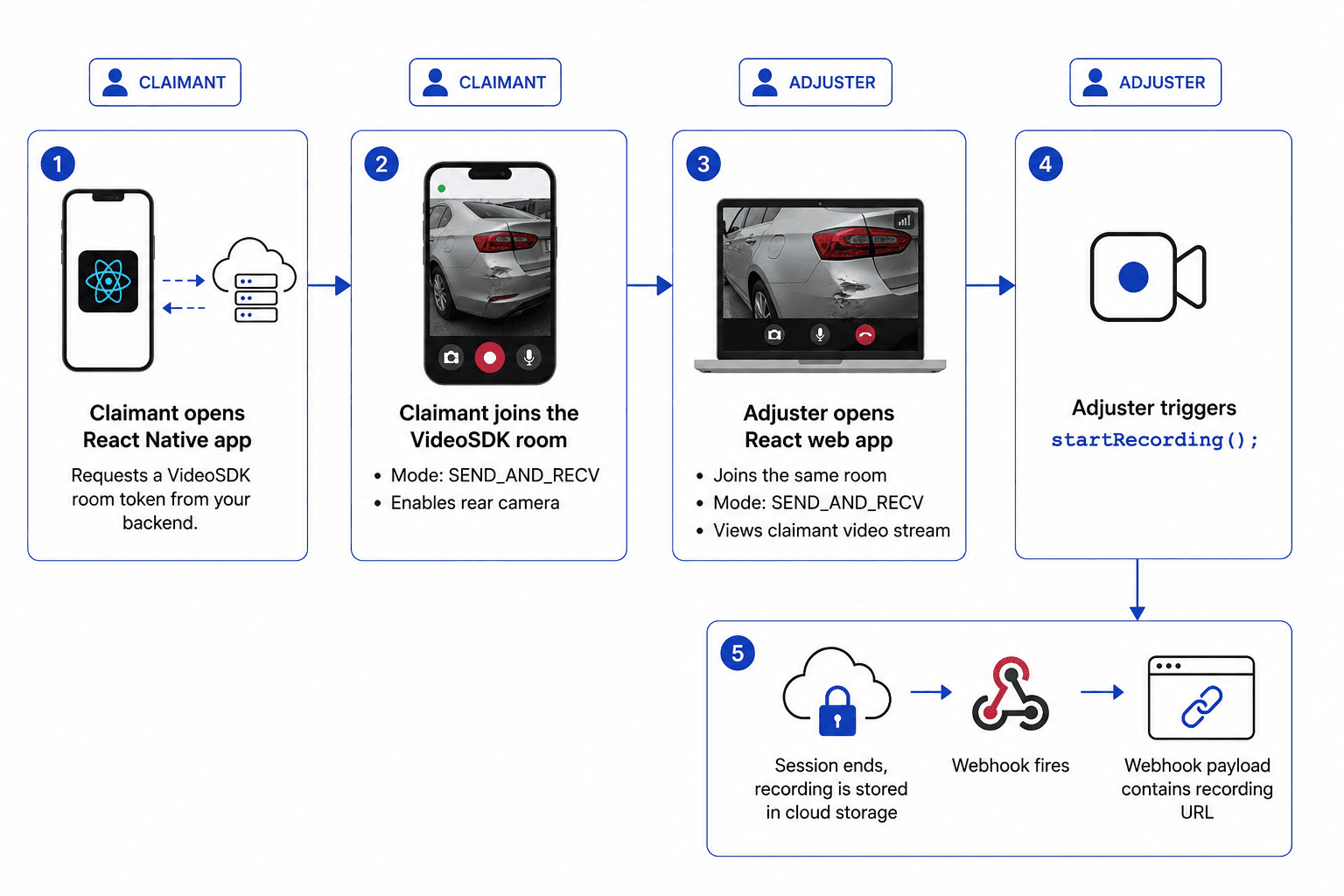
Both participants join in SEND_AND_RECV mode, verified from the VideoSDK React Native docs as the mode where "both audio and video streams will be produced and consumed". This means the adjuster can speak back to the claimant and the claimant hears guidance in real time.
Your backend issues JWT tokens to each participant. The claimant's token carries allow_join permission. The adjuster's token carries allow_join and optionally allow_mod, which grants the ability to toggle participant media if needed.
The session is backed by a single VideoSDK room: a Room is a virtual space where participants exchange media streams. A session is one live instance of that room; multiple sessions can occur under the same room ID over time.
Setting up the VideoSDK room
Creating a room via the REST API
The VideoSDK REST API base URL is https://api.videosdk.live. To create a room, send a POST request /v2/rooms with your authorisation token in the Authorization header.
curl --request POST \
  'https://api.videosdk.live/v2/rooms' \
  --header 'Authorization: YOUR_JWT_TOKEN' \
  --header 'Content-Type: application/json'
The response contains a roomId (for example, 2kyv-gzay-64pg). Store this and pass it to both participants when they initialize their SDK clients.
Generating a JWT token
Your backend signs a JWT using your VideoSDK API_KEY and SECRET, both available in your VideoSDK dashboard.
// Node.js backend - token generation
const jwt = require('jsonwebtoken');

const API_KEY = process.env.VIDEOSDK_API_KEY;
const SECRET  = process.env.VIDEOSDK_SECRET;

const options = {
  expiresIn: '120m',
  algorithm: 'HS256',
};

const payload = {
  apikey:      API_KEY,
  permissions: ['allow_join'],
  version:     2,
  roomId:      '2kyv-gzay-64pg', // scope token to specific room
};

const token = jwt.sign(payload, SECRET, options);
Set version: 2 to access the v2 API. Scoping the token to a specific roomId prevents the same token from being reused in unrelated sessions, which matters for claim audit integrity.
Claimant mobile app (React Native)
Joining the room and streaming vehicle damage
Install the SDK:
yarn add @videosdk.live/react-native-sdkWrap your app in MeetingProvider. Set micEnabled: false initially so the session does not start with accidental audio, and set webcamEnabled: true to begin streaming immediately on join.
// ClaimantApp.jsx
import {
  MeetingProvider,
  useMeeting,
  useParticipant,
  RTCView,
} from '@videosdk.live/react-native-sdk';

function ClaimantMeeting() {
  const { join, enableWebcam, disableWebcam, getWebcams, changeWebcam } =
    useMeeting({
      onMeetingJoined: () => {
        console.log('Claimant joined the claim session');
      },
      onMeetingLeft: () => {
        console.log('Claim session ended');
      },
    });

  return (
    // your UI
  );
}

export default function ClaimantApp() {
  return (
    <MeetingProvider
      config={{
        meetingId: 'ROOM_ID_FROM_BACKEND',
        micEnabled: false,
        webcamEnabled: true,
        name: 'Claimant',
        mode: 'SEND_AND_RECV',
      }}
      token="YOUR_JWT_TOKEN"
      joinWithoutInteraction={false}
    >
      <ClaimantMeeting />
    </MeetingProvider>
  );
}
Call join() when the claimant taps "Start Inspection." The useMeeting hook's join() method initiates the session handshake.
Switching between front and rear cameras
The docs confirm getWebcams() returns all available camera devices and changeWebcam(deviceId) switches to the selected device. For a vehicle inspection, the claimant should default to the rear camera. Present a toggle button that cycles between available cameras.
const { getWebcams, changeWebcam } = useMeeting();

const switchToRearCamera = async () => {
  const webcams = await getWebcams();
  // On most Android/iOS devices, the rear camera label contains "back" or "environment"
  const rear = webcams.find(
    (cam) =>
      cam.label.toLowerCase().includes('back') ||
      cam.label.toLowerCase().includes('environment')
  );
  if (rear) {
    changeWebcam(rear.deviceId);
  }
};
Call switchToRearCamera() on mount so the session opens on the damage-facing lens. The claimant can still toggle to the front camera by calling changeWebcam with a different deviceId from the same getWebcams() list.
Adjuster web interface (React)
Viewing the claimant's remote stream
Install the React SDK:
npm install @videosdk.live/react-sdkThe adjuster joins the same roomId with SEND_AND_RECV mode. Use useParticipant to access the claimant's video stream and RTCView (or a video element bound to the stream) to render it.
// AdjusterApp.jsx
import {
  MeetingProvider,
  useMeeting,
  useParticipant,
} from '@videosdk.live/react-sdk';

function ParticipantVideo({ participantId }) {
  const { webcamStream, webcamOn } = useParticipant(participantId);

  const videoRef = useRef(null);

  useEffect(() => {
    if (videoRef.current && webcamOn && webcamStream) {
      const mediaStream = new MediaStream();
      mediaStream.addTrack(webcamStream.track);
      videoRef.current.srcObject = mediaStream;
      videoRef.current.play().catch((err) => console.error(err));
    }
  }, [webcamStream, webcamOn]);

  return webcamOn ? (
    <video ref={videoRef} autoPlay playsInline muted style={{ width: '100%' }} />
  ) : (
    <div>Claimant camera is off</div>
  );
}

function AdjusterMeeting() {
  const { join, participants, startRecording, stopRecording, enableScreenShare } =
    useMeeting({
      onMeetingJoined: () => console.log('Adjuster joined'),
      onRecordingStarted: () => console.log('Recording started'),
      onRecordingStopped: () => console.log('Recording stopped'),
    });

  const remoteParticipants = [...participants.values()].filter(
    (p) => !p.local
  );

  return (
    <div>
      <button onClick={() => join()}>Join Claim Session</button>
      <button onClick={() => startRecording('https://your-webhook.com/recording', '/claim-recordings/')}>
        Start Recording
      </button>
      <button onClick={() => stopRecording()}>Stop Recording</button>
      <button onClick={() => enableScreenShare()}>Share Screen</button>
      {remoteParticipants.map((p) => (
        <ParticipantVideo key={p.id} participantId={p.id} />
      ))}
    </div>
  );
}

export default function AdjusterApp() {
  return (
    <MeetingProvider
      config={{
        meetingId: 'ROOM_ID_FROM_BACKEND',
        micEnabled: true,
        webcamEnabled: true,
        name: 'Adjuster',
        mode: 'SEND_AND_RECV',
      }}
      token="ADJUSTER_JWT_TOKEN"
      joinWithoutInteraction={false}
    >
      <AdjusterMeeting />
    </MeetingProvider>
  );
}
Screen share for annotation reference
The enableScreenShare() method is confirmed in the VideoSDK React Native docs (and mirrors the React SDK). The adjuster can share their screen to walk the claimant through a form or show a diagram of the vehicle damage zones. Call disableScreenShare() to stop it.
Note: built-in whiteboard annotation is not a documented method in the VideoSDK SDK as of this writing. For annotation overlays, you would implement a custom canvas layer and broadcast drawing coordinates using the usePubSub hook.
Quickstart: run the sample project in 5 steps
VideoSDK maintains a production-ready React sample that shares the same room and recording infrastructure used in this guide. Cloning it gives you a working two-participant video session you can adapt for your claims workflow in minutes.
Step 1: Clone the sample project
git clone https://github.com/videosdk-community/vkyc-reactsdk-example.gitStep 2: Copy the environment file
cp .env.example .envStep 3: Set your VideoSDK token
Generate a temporary token from your VideoSDK Account, then open .env and set:
REACT_APP_VIDEOSDK_TOKEN = "YOUR_VIDEOSDK_TOKEN"Step 4: Install dependencies
yarnStep 5: Run the app
yarn startThe app opens in your browser with a fully functional two-participant video session. Map the "customer" role to your claimant flow and the "agent" role to your adjuster interface.
Cloud recording for audit
Starting and stopping recording
Call startRecording() from the useMeeting hook. The method accepts three parameters: webhookUrl, awsDirPath, and a config object. The webhook fires when the recording is processed and stored.
const { startRecording, stopRecording } = useMeeting();

// Start recording at full quality in portrait mode
startRecording(
  'https://your-api.com/webhooks/recording-done',
  '/auto-claims/session-recordings/',
  {
    layout: {
      type: 'SPOTLIGHT',   // focuses on the active speaker (claimant)
      priority: 'PIN',
    },
    theme: 'DEFAULT',
    mode: 'video-and-audio',
    quality: 'high',
    orientation: 'portrait',
  }
);

// Stop when the adjuster closes the session
stopRecording();
SPOTLIGHT layout with PIN priority keeps the claimant's video feed prominent in the recorded file, which is what reviewers and auditors need to see.
Storage and retrieval
By default, VideoSDK stores recordings in its own cloud storage. To use your own S3 bucket, provide an awsDirPath pointing to your bucket path you can talk to the VideoSDK support team.
Once processed, retrieve recordings via:
GET https://api.videosdk.live/v2/recordingsOr fetch a specific recording:
GET https://api.videosdk.live/v2/recordings/{recordingId}The webhook payload includes the recording URL and session metadata, so you can associate each file with the corresponding claim ID in your system automatically.
Handling poor network conditions
What VideoSDK exposes for network quality
The useMeeting events page in the React Native docs lists onMeetingJoined, onMeetingLeft, onParticipantJoined, onParticipantLeft, and recording/stream events. A dedicated onNetworkQualityChanged event was not found in the React Native SDK docs at the time of writing. Before implementing network quality UI, check the latest SDK changelog and the useParticipant events page, as this may be available under participant-level events or via a newer SDK version.
For resilience, the practical approach that does not require a dedicated event is to monitor the WebRTC stats available through the browser's native RTCPeerConnection.getStats() API alongside VideoSDK's session, and display a degraded-quality warning when packet loss or jitter exceeds thresholds you define.
Reconnection guidance for claimants
On mobile, signal loss is common mid-inspection. Build your claimant app to handle onMeetingLeft and re-call join() automatically:
const { join } = useMeeting({
  onMeetingLeft: () => {
    // Wait 2 seconds, then attempt automatic rejoin
    setTimeout(() => {
      join();
    }, 2000);
  },
});
Display a visible status banner: "Reconnecting..." while the rejoin is in progress. The adjuster's session continues uninterrupted; they will receive onParticipantJoined again when the claimant reconnects.
For 3G or low-bandwidth conditions, advise claimants to hold the phone steady and avoid moving the camera quickly. Rapid motion on a constrained connection causes frame drops that reduce the quality of the evidence stream.
Key takeaways
- VideoSDK rooms are created via
POST /v2/roomsonhttps://api.videosdk.live, and both participants join using JWT tokens signed with HS256. - The
SEND_AND_RECVmode is the correct participant mode for a two-way claim inspection call where both parties produce and consume audio and video. - Camera switching on the claimant's device uses
getWebcams()to enumerate devices andchangeWebcam(deviceId)to select the rear lens, both confirmed from the React Native SDK docs. startRecording()fromuseMeetingstores the session to VideoSDK's cloud or your S3 bucket, and a webhook delivers the recording URL upon processing completion.- Built-in whiteboard annotation is not a documented SDK method; use
usePubSubto broadcast drawing state for a custom overlay.
FAQ
Can the adjuster take screenshots from the live stream?
VideoSDK does not expose a built-in screenshot API in its SDK. The adjuster can use the browser's native HTMLVideoElement and an HTML canvas element to capture a frame from the video element that renders the claimant's stream. Draw the video frame to the canvas using ctx.drawImage(videoEl, 0, 0) and then export it with canvas.toDataURL('image/png'). Store the resulting image alongside the session recording in your claims management system.
How long does a typical claim session recording take to process?
VideoSDK does not publish a guaranteed processing SLA in its current documentation. In practice, cloud recording processing time depends on session duration and output quality setting. A 10-minute high quality session typically completes within a few minutes of the session ending. Your webhook endpoint at webhookUrl receives a callback when the file is ready, so you do not need to poll. Check the VideoSDK webhooks documentation for the exact payload schema.
Can the claimant app work on 3G?
Yes. VideoSDK uses WebRTC, which includes adaptive bitrate control. On 3G connections (typically 1 to 10 Mbps download, 0.5 to 2 Mbps upload), the SDK will reduce video resolution and frame rate automatically to maintain stream continuity. For best results on 3G, set the recording quality to low or med rather than high, and instruct claimants to hold the phone still to reduce the encoder's bitrate demand. Audio quality is generally unaffected at 3G speeds.
Is the recording GDPR compliant?
GDPR compliance depends on how you configure your storage and data processing pipeline, not the SDK alone. VideoSDK provides the mechanism to store recordings in your own AWS S3 bucket via the awsDirPath parameter, which keeps the data within your controlled infrastructure. You are responsible for ensuring your storage region, retention policies, data subject consent, and processor agreements meet GDPR requirements. Consult VideoSDK's Privacy Policy and your own legal counsel to confirm your specific configuration is compliant.
Conclusion
Implementing video-based auto insurance claim adjustment with VideoSDK requires four concrete pieces: a JWT-authenticated room created via POST /v2/rooms, a React Native claimant app that joins in SEND_AND_RECV mode and exposes changeWebcam() for rear-camera use, a React adjuster interface that renders the remote stream and triggers startRecording(), and a webhook handler that receives the stored recording URL for your audit trail.
Every method in this guide, including join(), enableWebcam(), changeWebcam(), startRecording(), stopRecording(), and enableScreenShare(), is verified from the VideoSDK docs. The V-KYC sample repository gives you a running baseline in five commands, so you can focus engineering time on your claims-specific business logic rather than WebRTC plumbing.