



Know Your Customer (KYC) flows have moved to video banking. Users hold up their ID, look at the camera, and verification happens in real time. That convenience creates a new attack surface: anyone can try to spoof the camera with a printed photo, a looped video, or a screen replay. Liveness detection is the countermeasure. It confirms that the face in the frame belongs to a live person, not a static artifact.
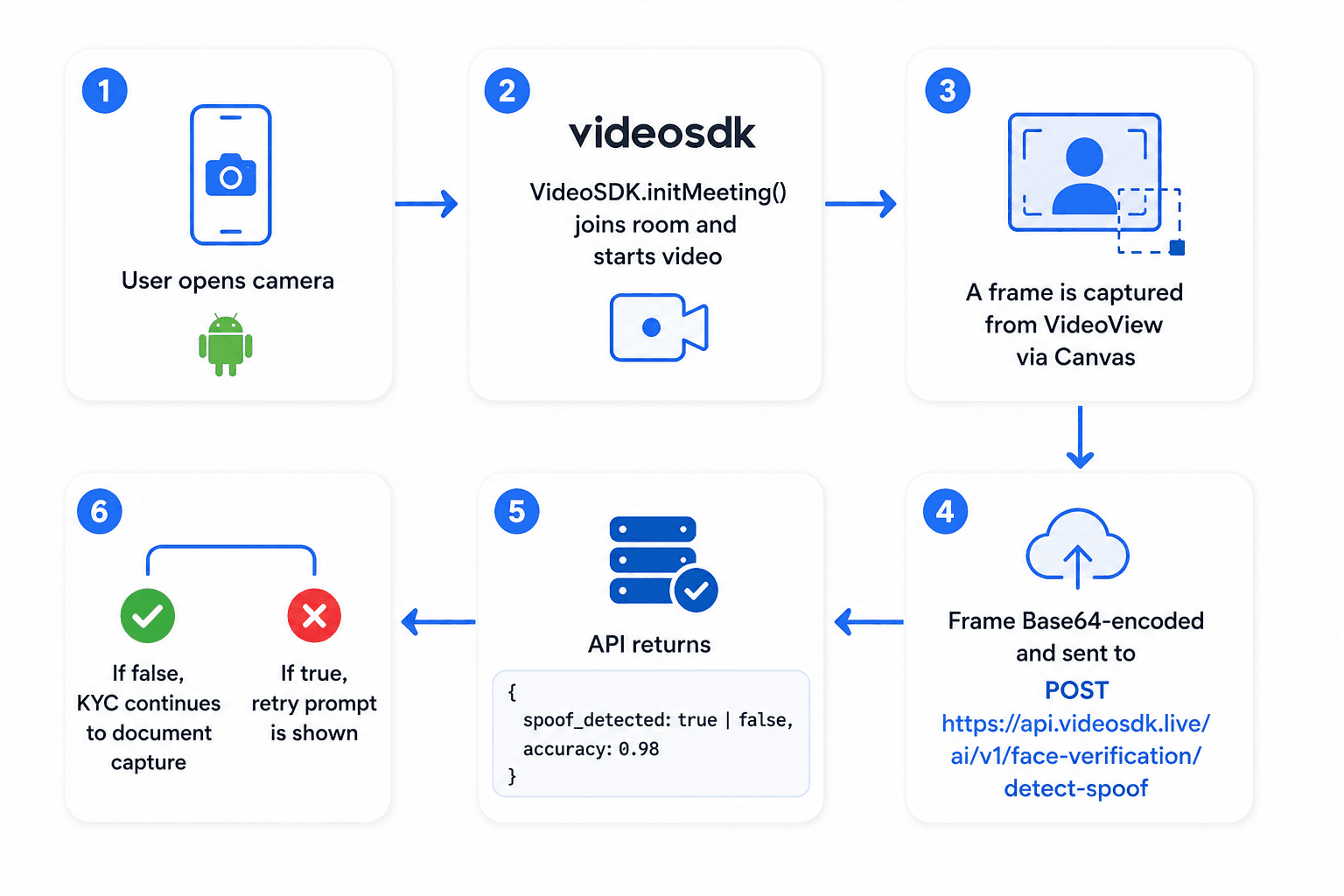
VideoSDK provides a Face Spoof Detection API as part of its identity verification suite. It is a passive approach: you capture a single frame from the live video stream, POST it to the API, and receive a spoof_detected boolean with an accuracy score. No challenge-response gestures are needed, which keeps the user experience smooth.
This guide shows you how to wire that API into an Android (Kotlin) and iOS (Swift) KYC app using the VideoSDK Android SDK and iOS SDK respectively.
Note: The Face Spoof Detection API is available on the VideoSDK Enterprise plan only.
What Is Liveness Detection in KYC?
Liveness detection decides whether the face presented to a camera comes from a real, physically present person.
There are two broad approaches:
Active liveness asks the user to perform an action: blink, turn their head, smile. It is explicit, but adds friction and can frustrate users on mobile.
Passive liveness analyzes a single frame or short buffer for artefacts that indicate spoofing: texture anomalies, reflections from a screen, depth inconsistencies, or print dot patterns. The user does nothing extra.
VideoSDK's Face Spoof Detection API uses both active liveness and passive liveness analysis. You send one JPEG frame, the model runs inference, and you receive spoof_detected: true or false. No gesture prompts are required on your end.
VideoSDK Face Spoof Detection API
This section documents the exact endpoint and payload, verified from the VideoSDK docs.
Endpoint
POST https://api.videosdk.live/ai/v1/face-verification/detect-spoofHeaders
Authorization: <YOUR_JWT_TOKEN>   // No "Bearer" prefix, just the raw token
Content-Type: application/json
The JWT token is generated from your VideoSDK API key and secret. See the VideoSDK auth token guide for details.
Request body
Images must be Base64-encoded with the data-URI prefix before being placed in the JSON body:
{
  "img": "data:image/jpeg;base64,${Base64data}"
}
Response
{
  "spoof_detected": true,
  "accuracy": 0.9899068176746368
}
spoof_detected: true means a spoof was detected. spoof_detected: false means the face appears to be live. The accuracy field reflects the model's confidence in its classification.
Both the Face Spoof Detection API and the Face Match API (covered in the combination section) require JPEG images encoded as Base64 with the data:image/jpeg;base64, prefix.
Android Integration
Setting Up the VideoSDK Android SDK
Add the VideoSDK repository to your settings.gradle:
dependencyResolutionManagement {
    repositories {
        google()
        maven { url 'https://jitpack.io' }
        mavenCentral()
        maven { url "https://maven.aliyun.com/repository/jcenter" }
    }
}
Add the SDK dependency to app/build.gradle:
implementation 'live.videosdk:rtc-android-sdk:0.3.0'Add permissions to AndroidManifest.xml:
<uses-permission android:name="android.permission.RECORD_AUDIO" />
<uses-permission android:name="android.permission.MODIFY_AUDIO_SETTINGS" />
<uses-permission android:name="android.permission.INTERNET" />
<uses-permission android:name="android.permission.CAMERA" />
Initialize the SDK in MainApplication.kt:
import live.videosdk.rtc.android.VideoSDK

class MainApplication : Application() {
    override fun onCreate() {
        super.onCreate()
        VideoSDK.initialize(applicationContext)
    }
}
Joining a Meeting and Initializing the Video Stream
In MeetingActivity.kt, configure the SDK with your token, call VideoSDK.initMeeting(), attach a MeetingEventListener, and join:
// 1. Configure VideoSDK with the JWT token
VideoSDK.config(token)

// 2. Initialize the meeting
meeting = VideoSDK.initMeeting(
    this@MeetingActivity, meetingId, participantName,
    micEnabled, webcamEnabled, null, null, false, null, null
)

// 3. Add the event listener
meeting!!.addEventListener(meetingEventListener)

// 4. Join the room
meeting!!.join()
Capturing a Frame and Calling the Face Spoof Detection API
The VideoSDK Android SDK exposes video through VideoTrack objects accessible via each Participant's Stream map. To capture a still frame for liveness checking, draw the track's current output onto a Bitmap using the VideoView component, then compress to JPEG and Base64-encode it.
The full flow looks like this in Kotlin:
import live.videosdk.rtc.android.VideoSDK
import live.videosdk.rtc.android.VideoView
import org.webrtc.VideoTrack
import android.graphics.Bitmap
import android.util.Base64
import java.io.ByteArrayOutputStream
import kotlinx.coroutines.Dispatchers
import kotlinx.coroutines.withContext
import java.net.HttpURLConnection
import java.net.URL
import org.json.JSONObject

/**
 * Capture the current frame from a VideoView and run spoof detection.
 * videoView - the live.videosdk.rtc.android.VideoView rendering the local participant.
 */
suspend fun runSpoofDetection(videoView: VideoView, token: String): Boolean {
    // Step 1: Draw the current VideoView frame into a Bitmap
    val bitmap = Bitmap.createBitmap(videoView.width, videoView.height, Bitmap.Config.ARGB_8888)
    val canvas = android.graphics.Canvas(bitmap)
    videoView.draw(canvas)

    // Step 2: Compress to JPEG and Base64-encode
    val outputStream = ByteArrayOutputStream()
    bitmap.compress(Bitmap.CompressFormat.JPEG, 85, outputStream)
    val base64Frame = Base64.encodeToString(outputStream.toByteArray(), Base64.NO_WRAP)
    val dataUri = "data:image/jpeg;base64,$base64Frame"

    // Step 3: POST to Face Spoof Detection API
    return withContext(Dispatchers.IO) {
        val url = URL("https://api.videosdk.live/ai/v1/face-verification/detect-spoof")
        val connection = url.openConnection() as HttpURLConnection
        connection.requestMethod = "POST"
        connection.setRequestProperty("Authorization", token)
        connection.setRequestProperty("Content-Type", "application/json")
        connection.doOutput = true

        val body = JSONObject().apply { put("img", dataUri) }.toString()
        connection.outputStream.use { it.write(body.toByteArray()) }

        val responseCode = connection.responseCode
        if (responseCode == 200) {
            val response = connection.inputStream.bufferedReader().readText()
            val json = JSONObject(response)
            // true means spoof detected, false means real face
            json.getBoolean("spoof_detected")
        } else {
            throw RuntimeException("Spoof detection failed with HTTP $responseCode")
        }
    }
}
Call this function from within onMeetingJoined() or at the point in your KYC flow where you want to verify liveness:
// Inside a coroutine scope, e.g. viewModelScope or lifecycleScope
val spoofDetected = runSpoofDetection(localVideoView, sampleToken)
if (spoofDetected) {
    showSpoofAlert()  // Block the KYC flow
} else {
    proceedToDocumentCapture()
}
iOS Integration
Setting Up the VideoSDK iOS SDK
Create a Podfile in your project root and add the VideoSDK dependency:
pod 'VideoSDKRTC', :git => 'https://github.com/videosdk-live/videosdk-rtc-ios-sdk.git'Run pod install, then add permissions to Info.plist:
<key>NSCameraUsageDescription</key>
<string>Camera permission description</string>
<key>NSMicrophoneUsageDescription</key>
<string>Microphone permission description</string>
Joining a Meeting in Swift
In MeetingViewController.swift, import the SDK and configure it with your token before calling VideoSDK.initMeeting():
import UIKit
import VideoSDKRTC
import WebRTC

class MeetingViewController: UIViewController {

    private var meeting: Meeting?

    private func initializeMeeting() {
        // Configure VideoSDK with the JWT token
        VideoSDK.config(token: meetingData.token)

        // Initialize the meeting
        meeting = VideoSDK.initMeeting(
            meetingId: meetingData.meetingId,
            participantName: meetingData.name,
            micEnabled: meetingData.micEnabled,
            webcamEnabled: meetingData.cameraEnabled
        )

        // Add event listener and join
        meeting?.addEventListener(self)
        meeting?.join()
    }
}
Capturing a Frame and Calling the Face Spoof Detection API
In the iOS SDK, video streams are delivered via RTCVideoTrack objects. When onStreamEnabled(_:forParticipant:) fires with stream.kind == .state(value: .video), you can cast stream.track to RTCVideoTrack and use a custom RTCVideoRenderer to pull the latest pixel buffer. A simpler approach for a single KYC frame is to render the RTCMTLVideoView into a UIImage using UIGraphicsImageRenderer.
import VideoSDKRTC
import WebRTC

extension MeetingViewController {

    /// Capture the current frame from the local participant's video view.
    func captureFrameAsBase64(from videoView: RTCMTLVideoView) -> String? {
        let renderer = UIGraphicsImageRenderer(bounds: videoView.bounds)
        let image = renderer.image { _ in
            videoView.drawHierarchy(in: videoView.bounds, afterScreenUpdates: true)
        }
        guard let jpegData = image.jpegData(compressionQuality: 0.85) else { return nil }
        return "data:image/jpeg;base64," + jpegData.base64EncodedString()
    }

    /// Call the VideoSDK Face Spoof Detection API with a captured frame.
    func runSpoofDetection(token: String, base64Image: String,
                           completion: @escaping (Bool?, Error?) -> Void) {
        let url = URL(string: "https://api.videosdk.live/ai/v1/face-verification/detect-spoof")!
        var request = URLRequest(url: url)
        request.httpMethod = "POST"
        request.addValue(token, forHTTPHeaderField: "Authorization")
        request.addValue("application/json", forHTTPHeaderField: "Content-Type")

        let body: [String: Any] = ["img": base64Image]
        request.httpBody = try? JSONSerialization.data(withJSONObject: body)

        URLSession.shared.dataTask(with: request) { data, _, error in
            if let error = error { completion(nil, error); return }
            guard let data = data,
                  let json = try? JSONSerialization.jsonObject(with: data) as? [String: Any],
                  let spoofDetected = json["spoof_detected"] as? Bool else {
                completion(nil, nil); return
            }
            completion(spoofDetected, nil)
        }.resume()
    }

    /// Trigger liveness check from your KYC step.
    func performLivenessCheck() {
        guard let base64 = captureFrameAsBase64(from: localParticipantVideoView) else { return }
        runSpoofDetection(token: TOKEN_STRING, base64Image: base64) { spoofDetected, error in
            DispatchQueue.main.async {
                if let detected = spoofDetected {
                    detected ? self.showSpoofAlert() : self.proceedToDocumentCapture()
                }
            }
        }
    }
}
Handling Spoof Detection Results
When spoof_detected comes back as true, block the KYC flow immediately. Do not attempt to proceed: a spoofed frame means the identity cannot be trusted. Standard handling options include:
Retry flow. Show the user a prompt explaining that the liveness check failed, ask them to ensure they are in good lighting with their face clearly visible, and trigger a new frame capture. Limit retries to 2-3 attempts before escalating.
Agent escalation. In an assisted KYC flow where a human agent is watching the video session, use VideoSDK's PubSub feature to send a message to the agent's UI indicating a failed liveness check. The agent can then take over manually.
Hard fail. After maximum retries are exhausted, end the meeting with meeting.leave(), log the session as failed, and require the user to restart the KYC process from scratch.
Frame quality best practices. Spoof detection accuracy depends on image quality. Before sending a frame:
- Confirm the face bounding box occupies at least 30-40% of the frame area. If the face is too small, detection accuracy drops.
- Check ambient light. Frames taken in very low light produce noise that can confuse the model.
- Request the user to remove sunglasses or heavy obstructions before KYC begins.
- Use a single clean frame rather than averaging multiple captures. The API is designed for single-image inference.
Combining Liveness with Face Match
A common KYC pattern runs two checks in sequence:
- Face Spoof Detection first, to confirm the user is live.
- Face Match API second, to compare the live face against the face on the uploaded identity document.
Only call Face Match if spoof detection passes. Running both unconditionally wastes API calls and can produce false confidence if spoof detection is skipped.
The Face Match API, verified from the VideoSDK docs, uses this endpoint:
POST https://api.videosdk.live/ai/v1/face-verification/verifyThe request body takes two Base64-encoded images:
{
  "img1": "data:image/jpeg;base64,${liveFrameBase64}",
  "img2": "data:image/jpeg;base64,${idDocumentFaceBase64}"
}
The response returns a single verified boolean:
{ "verified": true }verified: true means both images depict the same person. verified: false means they do not match.
The combined flow in pseudocode:
// Android: sequential check
val spoofDetected = runSpoofDetection(videoView, token)
if (!spoofDetected) {
    val faceMatched = runFaceMatch(liveFrameBase64, idDocumentBase64, token)
    if (faceMatched) {
        markKycPassed()
    } else {
        markKycFailed("Face does not match ID document")
    }
} else {
    markKycFailed("Liveness check failed")
}
Both APIs accept the same Base64 JPEG format. You can reuse the frame captured for spoof detection as img1 in the Face Match request without a second capture.
Key Takeaways
- The VideoSDK Face Spoof Detection API (
POST /ai/v1/face-verification/detect-spoof) accepts a single Base64 JPEG and returnsspoof_detectedplus anaccuracyscore. - On Android, initialize the SDK using
VideoSDK.initialize(applicationContext)followed byVideoSDK.config(token)andVideoSDK.initMeeting(). Capture frames fromVideoViewviaCanvas. - On iOS, install via
pod 'VideoSDKRTC'. UseVideoSDK.config(token:)andVideoSDK.initMeeting(). Render theRTCMTLVideoViewinto aUIImageto extract the frame. - Always run spoof detection before Face Match. A spoofed frame that passes face matching gives false assurance.
- Both identity verification APIs are available on the VideoSDK Enterprise plan only.
FAQ
Q: What image format does the Face Spoof Detection API accept?
A: The API accepts JPEG images encoded as Base64 strings with the data-URI prefix data:image/jpeg;base64,. The encoded string is passed as the value of the img field in the JSON request body. Other image formats such as PNG are not explicitly documented for this endpoint; use JPEG for best compatibility.
Q: What is the typical response time for the Face Spoof Detection API?
A: VideoSDK's documentation does not publish a specific latency SLA for the Face Spoof Detection API. In practice, REST AI inference endpoints of this type from cloud providers typically respond in 500ms to 2000ms depending on server load and image size. Test under your expected network conditions and account for this in your KYC flow UI with a loading state.
Q: Does the Face Spoof Detection API work reliably in low light?
A: Low-light conditions reduce the quality of the JPEG frame sent to the API. The model relies on texture and artefact patterns that become harder to detect in a noisy, underexposed image. VideoSDK recommends that you prompt users to be in well-lit environments before beginning KYC. As a code-level guard, you can check average pixel brightness before sending the frame and prompt the user to improve lighting if it falls below a threshold.
Q: Can the Face Spoof Detection API detect video replay attacks (a phone playing a recorded video)?
A: The Face Spoof Detection API analyzes a single JPEG frame for passive liveness artefacts such as screen moiré patterns, reflection glare, and pixel noise typical of a screen-captured face. Video replay attacks that are well-produced may be harder to catch with a single-frame approach. For high-assurance KYC, complement passive liveness with active challenge-response checks or run multiple frames across the session to increase detection confidence. VideoSDK does not publish specific test results for replay attack scenarios in its documentation.
Conclusion
Adding liveness detection to a VideoSDK-based video KYC app follows a clear path: join the meeting using the documented Android or iOS SDK setup, capture a frame from the live video view, and POST it to https://api.videosdk.live/ai/v1/face-verification/detect-spoof. The response tells you immediately whether to continue or block. Chain it with the Face Match API for a complete identity verification pipeline. All of the code above uses methods verified directly from the VideoSDK documentation.
For full Android and iOS project examples, see the official VideoSDK quickstart repositories linked in the docs at VideoSDK Docs Android and VideoSDK Docs iOS.