


TL;DR: You can build a fully functional Flutter live audio room using thevideosdkpackage. Participants join withcamEnabled: false, speakers get microphone control viaparticipant.unmuteMic(), raise-hand signals travel overroom.pubSub, and the whole session can be recorded with a singleroom.startRecording()call.
A live audio room is a real-time social audio experience where a small group of speakers talk on a shared stage while a larger audience listens. Key UX elements include a speaker stage with visible mic indicators, an audience grid with avatar tiles, and a raise-hand mechanism that lets listeners request speaking access. This guide shows how to build that pattern for Flutter using the VideoSDK Flutter SDK (videosdk on pub.dev), covering everything from SDK installation to cloud recording.
Flutter SDK setup
The VideoSDK Flutter SDK is a natively written Dart package. It supports iOS, Android, Web (beta), and Desktop (beta). Install it with:
flutter pub add videosdkThis adds the following to your pubspec.yaml:
dependencies:
  videosdk: ^2.0.0
Then import it in your Dart code:
import 'package:videosdk/videosdk.dart';Android permissions
Add the following entries to <project root>/android/app/src/main/AndroidManifest.xml. For an audio-only room you only need the microphone and network entries, but the camera permission is included so that video can be enabled later without a new release:
<uses-permission android:name="android.permission.RECORD_AUDIO" />
<uses-permission android:name="android.permission.ACCESS_NETWORK_STATE" />
<uses-permission android:name="android.permission.CHANGE_NETWORK_STATE" />
<uses-permission android:name="android.permission.MODIFY_AUDIO_SETTINGS" />
<uses-permission android:name="android.permission.INTERNET"/>
<uses-permission android:name="android.permission.FOREGROUND_SERVICE"/>
<uses-permission android:name="android.permission.WAKE_LOCK" />
Also set Java 8 compatibility in your app-level build.gradle because the WebRTC JAR uses static methods in EglBase:
android {
  compileOptions {
    sourceCompatibility JavaVersion.VERSION_1_8
    targetCompatibility JavaVersion.VERSION_1_8
  }
}
Raise minSdkVersion to at least 23 in the same file.
iOS permissions
Add these keys to <project root>/ios/Runner/Info.plist:
<key>NSMicrophoneUsageDescription</key>
<string>$(PRODUCT_NAME) Microphone Usage!</string>
In your Podfile, set the minimum platform to 13.0, switch to static linking, and enable the microphone permission flag:
platform: ios, "13.0";
use_frameworks! :linkage => :static

post_install do |installer|
  installer.pods_project.targets.each do |target|
    flutter_additional_ios_build_settings(target)
    target.build_configurations.each do |config|
      config.build_settings['GCC_PREPROCESSOR_DEFINITIONS'] ||= [
        'PERMISSION_MICROPHONE=1',
      ]
    end
  end
end
Audio-only room architecture
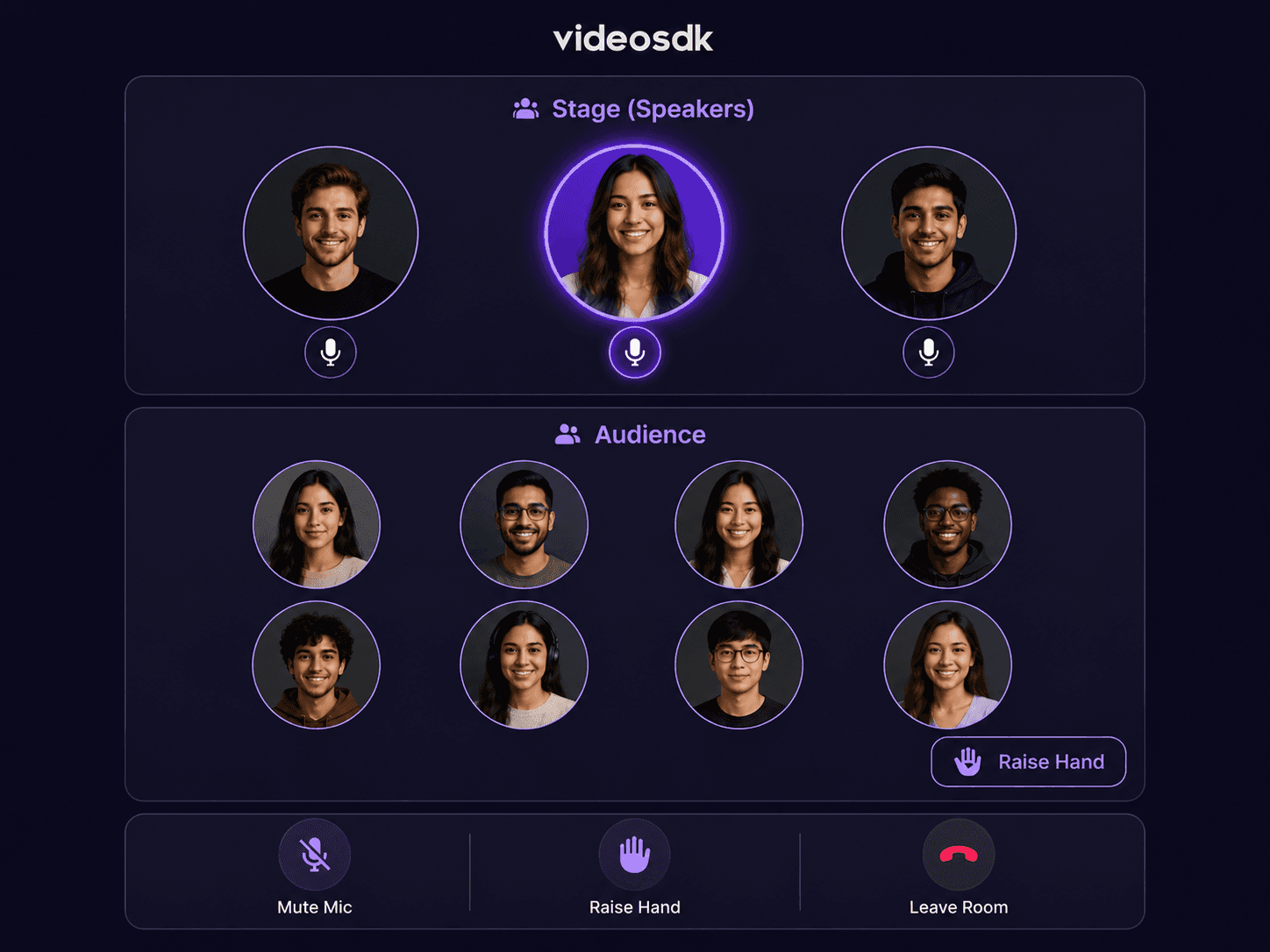
A live audio room separates participants into two roles: speakers and listeners.
Speakers are full participants with microphone access enabled. They appear on the visible stage and can be heard by everyone. The VideoSDK Room object treats them as regular participants with micEnabled: true.
Listeners join the room with their microphone disabled (micEnabled: false). They do not produce audio but can hear all speakers. The SDK does not have a separate MeetingMode for audio-only rooms; you control the distinction entirely through micEnabled and camEnabled flags at join time and through participant.unmuteMic() / participant.muteMic() when promoting or demoting participants at runtime.
This design means all participants share the same Room, which simplifies token management and recording. Speaker promotion is a runtime media permission change, not a room reconnection.
Creating and joining the audio room
Token generation is a required first step. You exchange your VideoSDK API key and secret for a short-lived JWT on your own server. The client then calls the VideoSDK create-room REST endpoint to get a roomId, or validates an existing one.
import 'dart:convert';
import 'package:http/http.dart' as http;
import 'package:videosdk/videosdk.dart';

String? roomId;
String? token;

void _getRoomIdAndToken() async {
  final LOCAL_SERVER_URL = '<your-server-url>';

  // Step 1: fetch token from your server
  final tokenResponse = await http.get(Uri.parse('$LOCAL_SERVER_URL/get-token'));
  final _token = json.decode(tokenResponse.body)['token'];

  // Step 2: create a room via your server (which calls VideoSDK REST API)
  final roomIdResponse = await http.post(
    Uri.parse('$LOCAL_SERVER_URL/create-room/'),
    body: {"token": _token},
  );
  final _roomId = json.decode(roomIdResponse.body)['roomId'];

  setState(() {
    token = _token;
    roomId = _roomId;
  });
}
Once you have a token and roomId, initialize the Room object with camera disabled. Set micEnabled: true for speakers and micEnabled: false for listeners:
final room = VideoSDK.createRoom(
  roomId: roomId!,
  displayName: "Alice",
  micEnabled: true,   // false for audience members
  camEnabled: false,  // audio-only: camera always off
  token: token!,
  notification: const NotificationInfo(
    title: "Audio Room",
    message: "Live audio session in progress",
    icon: "notification_icon",
  ),
);
Then join and listen for the roomJoined event:
room.on(Events.roomJoined, () {
  print("Room joined successfully");
});

room.on(Events.participantJoined, (participant) {
  print("${participant.displayName} joined");
});

room.join();
Speaker stage management
Promoting a listener to speaker means enabling their microphone. The host calls participant.unmuteMic() on the target Participant object. This sends a micRequested event to that participant, who can accept or reject:
// Host side: request a listener to unmute their mic
participant.unmuteMic();
The listener receives the request via an event:
room.on(Events.micRequested, (_data) {
  dynamic accept = _data['accept'];
  dynamic reject = _data['reject'];

  showDialog(
    context: navigatorKey.currentContext!,
    builder: (context) => AlertDialog(
      title: const Text("Mic requested?"),
      content: const Text("The host wants you to speak."),
      actions: [
        TextButton(
          onPressed: () { reject(); Navigator.of(context).pop(); },
          child: const Text("Decline"),
        ),
        TextButton(
          onPressed: () { accept(); Navigator.of(context).pop(); },
          child: const Text("Accept"),
        ),
      ],
    ),
  );
});
To mute a speaker and move them back to the audience, the host calls participant.muteMic() directly. This does not require the participant's consent:
// Host side: mute a speaker immediately
participant.muteMic();
Note: the participant making these calls must have the allow_mod permission set in their token. See the VideoSDK authentication documentation for token scopes.
Raise hand feature
PubSub (publish-subscribe) is VideoSDK's in-room messaging mechanism. Each message is published to a named topic and received by all subscribers. It is ideal for the raise-hand signal because no audio track change is involved.
A listener taps "Raise Hand," which publishes to a custom topic:
// Listener side: publish a raise-hand event
room.pubSub.publish(
  "RAISE_HAND",
  room.localParticipant.id, // send the listener's participantId as the message
  PubSubPublishOptions(persist: false),
);
The host subscribes to the same topic on room join and updates the UI to show a hand icon next to the requesting participant:
// Host side: subscribe to raise-hand events
room.pubSub
    .subscribe("RAISE_HAND", (PubSubMessage message) {
      setState(() {
        raisedHands.add(message.message); // message.message holds the participantId
      });
    });
The PubSubMessage object includes senderId, senderName, message, timestamp, and topic. Unsubscribe when the widget is disposed to avoid memory leaks:
void dispose() {
room.pubSub.unsubscribe("RAISE_HAND", _raiseHandHandler);
super.dispose();
}Active speaker detection
Active speaker detection is vital for audio rooms. The VideoSDK Flutter SDK fires a speakerChanged event on the Room object whenever the dominant speaker changes. The event payload contains the participantId of the currently speaking participant, or null when no one is speaking.
room.on(Events.speakerChanged, (activeSpeakerId) {
  setState(() {
    _activeSpeakerId = activeSpeakerId; // null when silence
  });
});
Use _activeSpeakerId in your speaker tile widget to add a visual highlight, such as a glowing ring or animated waveform icon, around the active speaker's avatar. For example:
Container(
  decoration: BoxDecoration(
    shape: BoxShape.circle,
    border: Border.all(
      color: participant.id == _activeSpeakerId
          ? Colors.purpleAccent
          : Colors.transparent,
      width: 3,
    ),
  ),
  child: CircleAvatar(child: Text(participant.displayName[0])),
)
This keeps the UI in sync with who is currently talking without polling or audio level callbacks.
Recording the audio session
VideoSDK offers three recording types for the Flutter SDK: Meeting Recording (composite), Participant Recording (individual), and Participant Track Recording. For an audio room, composite recording is the practical choice because it captures all speakers in a single file.
Call room.startRecording() with a storage webhook URL on your server, or leave it to the VideoSDK default cloud storage:
// Start composite meeting recording
room.startRecording(
  serverUrl: "<your-webhook-or-storage-url>",
  config: {
    "layout": {
      "type": "GRID",
      "priority": "SPEAKER",
    },
    "theme": "DARK",
  },
);
Stop recording when the session ends:
room.stopRecording();Listen for recording state changes:
room.on(Events.recordingStarted, () {
  print("Recording started");
});

room.on(Events.recordingStopped, () {
  print("Recording stopped");
});
Completed recordings are available from the VideoSDK Session Dashboard and through the Sessions REST API. The recorded file reflects all audio tracks that were active during the session.
Key takeaways
- The VideoSDK Flutter package is
videosdk(installed viaflutter pub add videosdk), and works on iOS, Android, Web (beta), and Desktop (beta). - Audio-only rooms use
camEnabled: falseat room creation time; there is no separate participant mode for listeners. The speaker/listener distinction is managed entirely throughmicEnabledand runtimemuteMic()/unmuteMic()calls. - The
RAISE_HANDPubSub pattern requires no SDK-specific feature; it uses the generalroom.pubSub.publish()/subscribe()API already in the SDK. - Active speaker UI is driven by
Events.speakerChanged, which fires on theRoomobject with theparticipantIdof the loudest speaker. - Composite cloud recording starts with
room.startRecording()and captured audio is stored server-side without any client-side file I/O.
FAQ
Q1. Can video be added later in the same room without participants reconnecting?
Yes. Because all participants share the same Room object, a speaker can call room.enableCam() at any time to turn on their camera. Listeners who were initialized with camEnabled: false can similarly enable their camera after being promoted to speaker. No reconnection or new token is required; the Room stays active and other participants receive Events.streamEnabled with the new video track.
Q2. What is the latency of VideoSDK audio rooms?
VideoSDK uses WebRTC as its transport layer. WebRTC audio typically delivers end-to-end latency in the range of 100 to 300 milliseconds over good network conditions, consistent with industry benchmarks for WebRTC-based conferencing. Actual latency depends on network path, device hardware, and regional server proximity. VideoSDK does not publish a specific latency SLA; test under your target network conditions for precise numbers.
Q3. How many speakers can be on stage at the same time?
VideoSDK supports large meetings. The practical limit for simultaneous active speakers in a conference room depends on your plan and the network conditions of participants. For audio-only rooms where video is disabled, the bandwidth per participant is significantly lower than a video call, which allows more concurrent speakers before quality degrades. Refer to the VideoSDK pricing and scalability documentation for participant limits on your specific plan.
Q4. Can listeners join from a web browser instead of the Flutter app?
Yes. VideoSDK provides separate SDKs for React, plain JavaScript, and other platforms. A listener joining from a web browser uses the JavaScript or React SDK with the same roomId and a token generated from the same API key. All participants, regardless of SDK, share the same room and can hear each other. Cross-platform interoperability is built into the VideoSDK architecture because all clients connect to the same WebRTC-based infrastructure.
Conclusion
Building a Flutter live audio room with VideoSDK requires four core steps: install the videosdk package, initialize a Room with camEnabled: false, manage speaker access using unmuteMic() and muteMic() on Participant objects, and relay raise-hand signals through room.pubSub. The Events.speakerChanged event handles active speaker highlighting without any polling, and room.startRecording() captures the full session to cloud storage. The result is a production-ready audio room app built entirely on verified SDK methods documented at docs.videosdk.live/flutter.