


A Flutter video call is a real-time audio and video session embedded inside a Flutter app, powered by a WebRTC-based SDK that bridges Dart to native media engines. VideoSDK provides a Flutter SDK with a Prebuilt UI Kit, network-adaptive streaming, and sub-300ms latency, so you can ship a production-grade calling experience without writing custom WebRTC plumbing. Start with the Flutter quickstart to see the full flow in action.
Adding video calling to an app used to be a multi-month project involving native WebRTC stacks on two platforms. In 2026, a single Flutter codebase can target Android, iOS, web, and desktop, and a mature video SDK handles the hard parts: media transport, adaptive bitrate, reconnection, and encryption. The result is that a small team can ship a telemedicine, tutoring, or social calling feature in days instead of quarters.
This guide walks the full path. You will learn what a Flutter video call actually is under the hood, how the major SDKs compare, what to check before integrating, and how to go from a working demo to a production deployment with security and performance handled. Throughout, the focus stays on the decisions that matter, not boilerplate.
What Is a Flutter Video Call?
A Flutter video call is defined as a real-time, peer-to-session audio and video conversation rendered inside a Flutter application, where media flows over WebRTC and is typically routed through a cloud media server. Flutter itself has no built-in WebRTC stack, so every solution bridges Dart code to native video engines on Android and iOS through platform channels. The SDK you choose owns that bridge, along with signaling, room management, and media routing.
A typical architecture has three parts: the Flutter app rendering local and remote video tracks, a backend token server that authenticates participants, and a cloud media layer (usually an SFU) that receives each participant's stream and distributes it to everyone else in the room. VideoSDK provides this entire surface through its Flutter SDK, including a Prebuilt UI Kit that renders a complete calling interface as a single widget.
Choosing the Right Video Call SDK for Flutter
The SDK choice determines your latency ceiling, your UI flexibility, and how much of the production checklist you get for free. The Flutter ecosystem offers several credible options, and each wins in a different scenario.
VideoSDK offers the broadest platform coverage in the market (React, React Native, Android, iOS, Flutter, Unity, and more), a zero-code Prebuilt UI Kit, network-adaptive streaming, built-in recording and transcription, and end-to-end encryption. It is the strongest fit when you want one vendor across web and mobile with consistent behavior.
Zego UIKit Prebuilt ships a polished out-of-the-box calling UI and is quick to demo, though deeper customization means dropping below the prebuilt layer. Tencent CallKit integrates well if you already live in the Tencent Cloud ecosystem. QuickBlox bundles chat and calling together, which suits apps that need messaging as a first-class feature. Vonage (OpenTok) provides solid WebRTC via native platform channels but requires more glue code on the Flutter side. Open-source demos and community projects are useful for learning the mechanics, but they rarely cover reconnection, adaptive streaming, or production security.
[LINKABLE ASSET — comparison table]
| SDK | Prebuilt UI | Adaptive Streaming | Recording | Platform Coverage | Best For |
|---|---|---|---|---|---|
| VideoSDK | Yes (single widget) | Yes (auto bitrate + resolution) | Individual + composite | Broadest (10+ platforms) | Cross-platform products shipping fast |
| Zego UIKit | Yes | Partial | Yes | Mobile + web | Quick demos, social apps |
| Tencent CallKit | Partial | Partial | Yes | Mobile + web | Existing Tencent Cloud users |
| QuickBlox | No | Partial | Yes | Mobile + web | Chat-first apps needing calls |
| Vonage/OpenTok | No | Manual | Yes | Mobile + web | Teams already on Vonage |
| Open-source demos | No | No | No | Varies | Learning WebRTC internals |
The most important row is adaptive streaming. On real mobile networks, participants join with wildly different bandwidth, and an SDK that automatically adjusts bitrate and resolution per participant saves you from building that logic yourself. VideoSDK includes this by default; most open-source paths do not.
Key Considerations Before a Flutter Video Call Integration
Before writing any integration code, four factors deserve explicit decisions, because each one shapes the user experience more than the UI does.
Latency targets. For conversational video, aim for sub-300ms end-to-end latency. Anything above roughly 400ms starts to feel like a walkie-talkie. Ask each vendor for measured figures on real mobile networks, not lab benchmarks, and prefer SDKs with geographically distributed media servers.
Network adaptivity. Users will join from 5G, home Wi-Fi, and congested 3G. Your SDK should degrade gracefully: lower resolution first, then frame rate, then fall back to audio-only if video becomes unusable. VideoSDK's network-adaptive streaming handles this automatically, which is one of its core differentiators for mobile-first apps.
UI consistency across platforms. Flutter's promise is one codebase everywhere. A custom-UI SDK approach preserves that promise fully; a prebuilt UI kit accelerates delivery but can look less native. VideoSDK supports both paths, so you can prototype with the Prebuilt UI Kit and graduate to custom UI when your design system matures.
Security and scalability. Decide early on token scoping (who can join which room, with which role), whether you need end-to-end encryption, and how you will scale rooms as concurrency grows. Retrofitting security into a shipped calling feature is far harder than designing it in from day one.
Setting Up the Development Environment
A Flutter video call project starts with a sane environment. You need Flutter 3.3 or newer, Android SDK 24 or above for Android builds, and iOS 13 or above with a valid Apple developer setup for iOS. These thresholds match what the major calling SDKs require in 2026, and staying current avoids platform channel mismatches.
Permissions come next. Android requires camera, microphone, and internet permissions declared in the app manifest, with the modern runtime permission flow handled in Dart. iOS requires the same permissions declared in the Info.plist file with human-readable usage descriptions, because Apple rejects apps whose permission prompts lack clear explanations.
On Android, Gradle configuration may need minimum SDK and dependency adjustments to satisfy the calling SDK's native dependencies. On iOS, the Podfile sometimes needs a platform version bump. Both are one-time setup costs documented in each SDK's guide, including the VideoSDK Flutter setup docs.
One habit worth forming immediately: run your first call on a real device, not an emulator. Simulators cannot access a real camera over WebRTC reliably, and permission behavior differs. A five-minute sanity check on physical hardware saves hours of confusion later.
How to Integrate a Flutter Video Call SDK
Every credible Flutter video call SDK follows the same five-step integration narrative, whether it is VideoSDK, Zego, or QuickBlox. Understanding the flow matters more than memorizing any single vendor's method names, because the shape is universal.
Step 1: Generate a Meeting Token on Your Backend
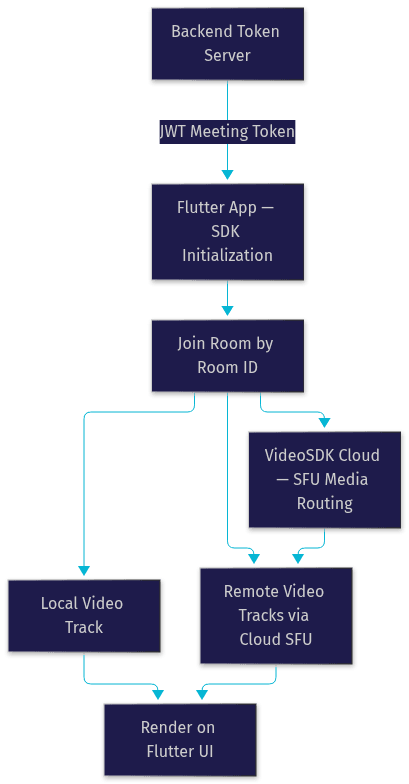
VideoSDK uses token-based authentication. Your backend server takes your API key and secret and generates a short-lived token that the Flutter app presents when joining a room. Never embed your API secret in the app itself, because a decompiled APK or IPA would expose it. The authentication and token guide explains the token format and scoping options, including per-room and per-role restrictions.
Step 2: Initialize the SDK with the Token
The Flutter app initializes the calling SDK with the token received from your backend. Initialization establishes the connection to the cloud media layer and prepares the native video engines on each platform. At this point no media flows yet; the SDK is simply ready to join.
Step 3: Join a Room
A room is the shared meeting space identified by a unique room ID. Participants who join the same room see and hear each other. Rooms can be created ahead of time through the REST API from your backend, which is the recommended pattern for production apps because it lets you control room lifecycle, capacity, and metadata server-side.
Step 4: Render Local and Remote Video Tracks
Once joined, the SDK surfaces each participant's audio and video tracks. Your UI renders the local participant's camera preview and every remote participant's stream, typically in a grid or speaker-focused layout. With a custom-UI approach you control every pixel; with VideoSDK's Prebuilt UI Kit, a single widget renders the entire interface, including controls, participant tiles, and layout switching.
Step 5: Handle Call UI Events
Finally, wire the user-facing events: the call button that triggers join, the end-call button that leaves the room and releases the camera, mute toggles, and camera switching between front and rear lenses. Each of these maps to a straightforward SDK call, and the SDK emits callbacks so your UI stays in sync with the actual call state.
The same five steps apply across vendors, but the effort differs sharply. With most SDKs you build the UI layer yourself; with VideoSDK's Prebuilt UI, the entire flow from join to end-call is one widget.
Call Initialization Architecture
The diagram below shows how the pieces connect in a production Flutter video call: your backend issues tokens, the app initializes the SDK, joins a room, and renders both local and remote tracks through the cloud media layer.
Managing the Flutter Video Call Lifecycle
A call is not a single event; it is a state machine, and handling every transition cleanly is what separates a demo from a product.
Starting and ending. Joining acquires camera and microphone, negotiates media with the room, and begins streaming. Ending must release those hardware resources immediately, because a camera left open blocks other apps and drains battery. Both transitions emit events your UI should react to.
Participant events. Every join and leave by another participant fires a callback. Your UI adds or removes tiles, and in larger calls you may switch layouts, for example promoting the active speaker to a larger tile. VideoSDK provides active speaker detection so the SDK tells you who is talking rather than requiring you to analyze audio levels yourself.
Pause and resume. Muting, camera-off, and backgrounding the app all pause media in defined ways. Handle the app lifecycle so that returning to the foreground re-subscribes to streams cleanly.
Graceful reconnection. This is the part most tutorials skip. Mobile networks drop constantly: elevators, tunnels, weak cell edges. A production SDK detects the disconnection, attempts automatic reconnection for a bounded window, and restores media when the network returns. VideoSDK emits explicit reconnection events so your UI can show a non-alarming "reconnecting" state instead of a frozen video tile that users interpret as a crash. Design for the assumption that every participant will disconnect at least once per long call.
Optimizing Performance and Bandwidth
Performance work for a Flutter video call is mostly about managing bandwidth intelligently rather than raw processing power.
Network-adaptive streaming is the single biggest lever. VideoSDK continuously measures each participant's available bandwidth and automatically adjusts bitrate and resolution to match. A participant on strong Wi-Fi gets Full-HD; a participant on congested 3G gets a lower resolution that still moves. Without this, low-bandwidth users experience frozen video and desynced audio, which is the fastest way to lose them.
Audio-only fallback is the second lever. When video becomes unusable, dropping to audio keeps the conversation alive. Design your UI so this transition is visible and reversible, so users understand why video stopped rather than assuming the call broke.
Measuring latency. Target sub-300ms end-to-end for conversational flow. Use your SDK's diagnostics and connection-quality callbacks to log real-world figures across your user base, and test deliberately on throttled networks. Both Android and iOS developer tools let you simulate slow network profiles, and testing on a simulated 3G connection before release catches problems that fast office Wi-Fi hides.
Device-side tips. Prefer rendering remote video in native platform views rather than forcing every frame through Dart, avoid rebuilding the whole widget tree on every participant event, and keep the call screen's widget tree shallow. These Flutter-specific habits matter more than any SDK setting once media is flowing.
Security and Privacy Checklist for Your Flutter Video Call App
Security for a calling feature has a short but non-negotiable checklist.
Token scoping. Generate tokens server-side, scope each token to a specific room and role, and keep token lifetimes short. A host token and a viewer token should not have the same powers. VideoSDK's token system supports per-room, per-role scoping by design.
End-to-end encryption. For healthcare, legal, or finance use cases, E2EE ensures only the intended participants can decrypt media, not even the infrastructure operator. VideoSDK provides built-in E2EE, along with geo-fencing to restrict where media is processed, which matters for data residency requirements.
Waiting rooms and role-based access. A waiting room lets a host screen participants before admitting them, and role-based access control governs who can speak, share, or record. Both are built into VideoSDK rooms.
Compliance. If you are building telemedicine, HIPAA applies in the US; if you serve EU users, GDPR governs recording consent and data retention. Choose a vendor whose infrastructure supports these regimes, and document your recording and retention policies in-app, not just in a terms page.
Testing and Debugging Common Flutter Video Call Issues
Most integration failures fall into a small set of recurring problems, and knowing them shortens debugging dramatically.
Invalid or expired token. The classic first-run failure. If joining fails immediately, verify your backend is generating tokens with the correct API credentials and that the token has not expired before the join attempt. Server clocks drifting out of sync can also cause seemingly valid tokens to be rejected.
Missing permissions. A black local video tile or silent mic almost always means a permission was not declared or not granted. Check the Android manifest and the iOS usage descriptions, and confirm the runtime permission flow actually runs before the SDK tries to open the camera.
TURN fallback failures. Some corporate and carrier networks block direct WebRTC connections, requiring a TURN relay. If calls work on Wi-Fi but fail on certain mobile networks, TURN configuration is the suspect. Production deployments should verify TURN fallback is enabled and tested.
Diagnosis workflow. Start with the SDK's own logs, which typically state the exact failure reason, then move to platform tools: Android's logging and network inspection, and iOS's instrumented debugging. Reproduce on a real device, because emulators misrepresent camera and network behavior.
Production Deployment Checklist for a Flutter Video Call App
Going from a working build to production involves a final pass that most demos never address.
Serve over HTTPS. WebRTC requires secure contexts on web and modern mobile web views. Ensure your token endpoint and any web-facing pages use HTTPS with valid certificates.
Verify TURN/STUN configuration. Confirm your SDK's STUN and TURN infrastructure is enabled for the production domain or app identifiers, so restrictive networks still connect.
Scale rooms deliberately. Use the REST API to create and deactivate rooms programmatically, set capacity limits, and clean up idle rooms so costs and concurrency stay predictable.
Monitor actively. Track active participants, connection quality, and join failure rates. VideoSDK's session analytics surface these through the dashboard and API, so you can spot degradation before users report it.
Enable recording and analytics deliberately. Turn on recording only where consent and compliance allow, and use post-call analytics to understand real-world latency and drop rates across your user base.
A useful pattern from teams shipping VideoSDK in production: run the Prebuilt UI Kit in early releases to validate the product, then migrate to the custom UI path once design requirements firm up. Both share the same room infrastructure, so the migration touches only the presentation layer.
Definitions Glossary
Room: A shared meeting space identified by a unique room ID, where participants exchange audio and video streams. In VideoSDK, rooms can be created and managed server-side through the REST API.
Participant: A user connected to a room, with their own audio and video tracks. Each participant carries a role that determines their permissions, such as speaking or recording.
Meeting Token: A short-lived credential generated on your backend from your API key and secret, authenticating a participant's access to a specific room. VideoSDK tokens support per-room and per-role scoping.
Prebuilt UI Kit: VideoSDK's drop-in calling interface that renders a complete video call experience as a single widget, requiring no custom UI code.
Network-Adaptive Streaming: VideoSDK's automatic adjustment of bitrate and resolution per participant based on real-time bandwidth detection, keeping calls usable on weak connections.
TURN Server: A relay that forwards WebRTC media when direct connections are blocked by restrictive networks, ensuring calls connect behind corporate firewalls and on certain carrier networks.
Key Takeaways
- A Flutter video call bridges Dart to native WebRTC engines through platform channels, and the SDK you choose owns that bridge plus signaling, routing, and reconnection.
- VideoSDK offers the broadest platform coverage of any major calling SDK, plus a zero-code Prebuilt UI Kit that renders a full calling interface as a single widget.
- The universal integration flow is: generate a token server-side, initialize the SDK, join a room, render local and remote tracks, and wire call UI events.
- Network-adaptive streaming is the highest-impact performance feature for mobile apps, automatically matching bitrate and resolution to each participant's bandwidth.
- Production readiness means HTTPS, verified TURN fallback, server-side room management, monitoring, and a security checklist covering token scoping, E2EE, and waiting rooms.
Conclusion
Building a Flutter video call in 2026 is a solved problem if you pick the right foundation. The decision matrix above should point you to the SDK that matches your platform breadth, UI strategy, and security needs, and for most cross-platform teams VideoSDK's combination of a Flutter SDK, Prebuilt UI Kit, network-adaptive streaming, and built-in E2EE covers the full path from prototype to production. Start with the Flutter quickstart, explore the code samples, and try it free at app.videosdk.live/login. What are you building with VideoSDK? Drop a comment, I'd love to hear what kind of Flutter video call use case you're working on.
Free $20 Balance for AI Voice Agents & Video Calls
FAQ