


Bitrate is the amount of video data transmitted per second, measured in kilobits or megabits per second, and it is the single biggest factor determining streaming quality. Higher bitrate means better image quality but more bandwidth and storage; lower bitrate saves resources but introduces compression artifacts. Matching your bitrate to your encoder, platform, and audience bandwidth, ideally with adaptive bitrate streaming, is the key to smooth playback at the best possible quality.
Every streamer has faced the same impossible trade-off: crank the quality up and viewers complain about buffering, dial it down and they complain about pixelated mush. The variable sitting at the center of that trade-off is bitrate, and yet it is the setting most people copy from a forum post without understanding.
This guide fixes that. You will learn what bitrate actually measures, how it interacts with resolution, frame rate, and codec choice, and how to calculate the right bitrate for YouTube, Twitch, mobile platforms, and 4K corporate streaming. You will also get bandwidth and storage planning formulas, a decision framework for choosing between H.264, H.265, and AV1, and the practical testing methods professionals use before going live. By the end, you will be able to plan a stream from encoder settings to viewer bandwidth with confidence.
What Is Bitrate in Streaming Video?
Bitrate is defined as the amount of data processed or transmitted per unit of time, and for video it is measured in bits per second, typically expressed as kilobits per second (kbps) or megabits per second (Mbps). A 6,000 kbps video stream carries six million bits of encoded video data every second.
One common source of confusion is bits versus bytes. Network speeds and streaming bitrates use bits, while file sizes and storage use bytes, and there are eight bits in a byte. So a 6 Mbps stream consumes roughly 0.75 megabytes of data per second, which is about 2.7 gigabytes per hour before you add audio. Mixing these units is the most frequent error in storage estimation.
Bitrate matters because it is the budget your encoder has to work with. The codec compresses each frame, and the bitrate determines how much information it is allowed to keep. When the budget is too small for the content, the encoder discards detail, producing blocky artifacts, especially in fast motion, dark scenes, and fine textures like grass or confetti. When the budget is generous, the encoder preserves detail and the stream looks clean.
How Bitrate Relates to Resolution, Frame Rate, and Codec
Three drivers determine how much bitrate a video needs: resolution, frame rate, and codec efficiency. Resolution sets the number of pixels per frame, frame rate sets how many frames per second, and the codec determines how efficiently those frames can be described.
Resolution is the most intuitive driver. Doubling resolution roughly quadruples pixel count, so moving from 1080p to 4K means the encoder must describe four times the visual information. However, bitrate does not need to scale fourfold, because larger frames contain more redundant, compressible detail. In practice, 4K typically needs roughly two to three times the bitrate of 1080p for comparable perceived quality.
Frame rate scales more linearly. Moving from 30 to 60 frames per second nearly doubles the number of frames the encoder must produce, so a common approach is to add 40 to 60 percent more bitrate to maintain per-frame quality. High-motion content like sports or gaming benefits most from 60 fps, and it punishes under-budgeted bitrates hardest.
Codec efficiency is the multiplier that changes everything. A modern codec like AV1 can deliver the same perceived quality as H.264 at roughly half the bitrate, which means codec choice can cut your bandwidth bill in half before you touch any other setting. The catch is compatibility: viewers' devices must be able to decode the stream in real time, and older hardware struggles with newer codecs.
The practical takeaway is that bitrate, resolution, frame rate, and codec are a system. You never choose bitrate in isolation; you choose a combination that fits your content, your platform, and your audience's connections.
Bitrate Calculation Flowchart
Calculating your target bitrate follows a repeatable sequence: start with your output resolution and frame rate, pick your codec, look up or derive a quality-appropriate bitrate for that combination, add overhead for audio and container muxing, then convert the total into bandwidth and storage requirements.
The flowchart below shows the decision path from input settings through to the final storage estimate:
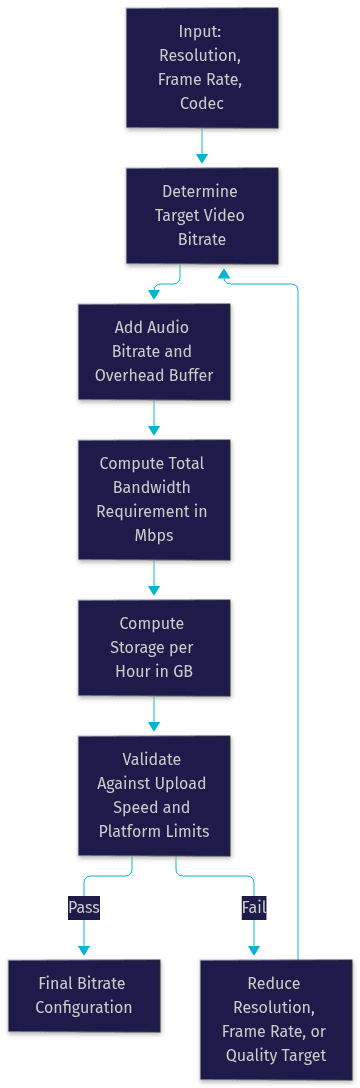
The validation loop at the bottom is the step most people skip. If your computed bandwidth exceeds roughly 70 percent of your available upload speed, you need to step down your quality target and recalculate, because live streams fail from upload saturation far more often than from encoding limits.
Choosing the Right Bitrate for Popular Platforms
Every major platform publishes recommended bitrate ranges, and following them matters because platforms re-encode or reject streams that fall outside their expectations. The table below summarizes typical recommended ranges as of 2026; always confirm against the platform's current documentation before a major broadcast.
| Platform | Resolution / FPS | Recommended Video Bitrate | Notes |
|---|---|---|---|
| YouTube Live | 1080p / 60 | 6,000 to 9,000 kbps | Supports up to 4K; higher is better for motion |
| YouTube Live | 4K / 60 | 35,000 to 45,000 kbps | Requires strong, stable upload |
| Twitch | 1080p / 60 | 6,000 kbps max | Twitch caps ingest around 6,000 to 8,000 kbps |
| Facebook / Instagram | 1080p / 30 | 4,000 to 6,000 kbps | Mobile-first audience; keep it lean |
| Netflix (on-demand reference) | 4K | 15,000 to 25,000 kbps | Uses per-title optimization with efficient codecs |
| Zoom / video conferencing | 1080p | 2,500 to 4,000 kbps | Adaptive; prioritizes latency over fidelity |
| Corporate / internal streaming | 1080p / 30 | 3,000 to 5,000 kbps | Often bandwidth-constrained office networks |
Two patterns stand out. First, live platforms like Twitch enforce hard ingest caps, so exceeding them gains nothing and risks dropped frames. Second, on-demand services like Netflix achieve lower bitrates at the same quality because they can encode offline with per-title analysis and modern codecs, something live encoders cannot fully replicate.
For mobile-heavy audiences, lean toward the lower end of every range. Mobile networks fluctuate, and if you plan to use adaptive bitrate streaming, you will encode multiple renditions, for example 1080p at 5,000 kbps, 720p at 2,800 kbps, and 480p at 1,000 kbps, so every viewer gets the best rendition their connection can sustain.
Codec Impact: H.264 vs H.265 vs AV1
Codec choice is the highest-leverage bitrate decision you can make, because it determines how much quality each bit buys.
H.264 remains the default for compatibility. Every browser, phone, smart TV, and streaming stick built in the last decade decodes it in hardware, and every platform accepts it. Its weakness is efficiency: it needs roughly 40 to 50 percent more bitrate than newer codecs for the same visual quality.
H.265, also called HEVC, delivers the same perceived quality as H.264 at around 30 to 50 percent lower bitrate. Hardware decoding is now common on modern devices, and Apple's ecosystem supports it broadly. The drawbacks are licensing complexity and patchy support on older Android and browser environments, which makes it a strong choice for controlled audiences but a risky one for open webcasts.
AV1 is the current efficiency leader, matching H.264 quality at roughly half the bitrate and beating H.265 by another 20 to 30 percent. The AOMedia consortium, which includes Google, Amazon, and Netflix, developed it royalty-free, and YouTube and Netflix already serve large volumes of AV1 content. The trade-off is encoding cost: AV1 encoding is computationally heavy, so live AV1 streaming requires either powerful hardware encoders or cloud transcoding, and older client devices may lack hardware decoding.
The practical rule: use H.264 when you must reach everyone, H.265 when your audience's devices are known and modern, and AV1 when you control both ends of the pipeline or are serving on-demand content where encoding time is not critical.
Practical Bandwidth Planning & Storage Estimation
Converting bitrate into real-world requirements is simple arithmetic once you keep the units straight.
For bandwidth, add your video bitrate and audio bitrate together, then add about 10 percent overhead for the container, keyframes, and protocol overhead. A 6,000 kbps video stream with 160 kbps audio totals roughly 6,160 kbps, and with overhead you should plan for about 6.8 Mbps of sustained upload. The golden rule for live streaming: your total bitrate should never exceed about 70 percent of your measured upload speed, leaving headroom for network fluctuation. If your upload tests at 10 Mbps, cap your stream around 7 Mbps total.
For storage, divide the total bitrate in megabits by eight to get megabytes per second, then multiply by 3,600 for an hour. That 6.8 Mbps stream produces roughly 3 gigabytes per hour of recording. Scale that by hours and retention policy to plan disk space, and remember that recording at a higher bitrate than you stream, a common practice for local archives, multiplies storage needs accordingly.
The decision tree below walks through the full planning process from codec choice to final bitrate:
For teams building interactive or large-scale streaming products rather than one-off broadcasts, managed infrastructure changes the math. Services like VideoSDK's interactive live streaming handle network-adaptive streaming automatically, adjusting bitrate and resolution per viewer in real time, which removes much of the manual planning this section describes.
Real-World Tools & Testing Methods
Theory only gets you so far; before every important broadcast, measure your actual conditions.
Start with a bitrate calculator. Several encoder vendors and streaming platforms offer free calculators where you enter resolution, frame rate, and codec, and receive recommended bitrate ranges plus storage estimates. Cross-check two calculators, because they apply slightly different quality assumptions.
Next, test your upload speed with a reputable speed test service, and test it at the same time of day as your planned broadcast. Home and office connections suffer evening congestion, and a connection that tests at 20 Mbps at noon may deliver 12 Mbps at 8 PM.
Then run a real on-air test. Stream to an unlisted or private channel for ten to fifteen minutes at your intended settings while watching your encoder's dropped-frame counter and the platform's ingest health indicators. If dropped frames stay near zero and the ingest connection remains stable, your settings are safe. If frames drop, reduce bitrate before touching anything else.
Finally, monitor during the actual event. Keep an eye on real-time throughput versus configured bitrate; a sustained gap between them signals network trouble before viewers notice it. For production systems, network monitoring tools that log jitter and packet loss over time help you diagnose whether recurring problems come from your encoder, your ISP, or the platform's ingest edge.
Common Pitfalls & Optimization Tips
Most streaming quality problems trace back to a handful of predictable mistakes.
Skipping the overhead buffer is the first. Your stream needs headroom above its nominal bitrate for keyframes, audio spikes, and protocol overhead. Running your upload connection at 95 percent utilization guarantees dropped frames the moment anyone else on the network opens a file.
Misunderstanding CBR versus VBR is the second. Constant bitrate keeps output steady, which live platforms and network planning prefer, and it is the right default for live streaming. Variable bitrate lets the encoder spend more bits on complex scenes and fewer on simple ones, which is excellent for on-demand files but can spike past your upload ceiling during live broadcasts. If your platform supports constrained VBR with a sensible ceiling, it can offer the best of both.
Ignoring network jitter is the third. Jitter, the variation in packet arrival timing, disrupts streams even when average bandwidth is sufficient. Wired connections beat Wi-Fi for streaming, and if you must stream over Wi-Fi, stay close to the router and keep other devices off the network.
For future-proofing, plan for adaptive bitrate streaming from the start. Encode multiple renditions and let the delivery system serve each viewer the highest quality their connection sustains. This is how large platforms handle heterogeneous audiences, and it is increasingly the baseline expectation rather than an advanced feature. Also keep an eye on codec migration: hardware AV1 support is spreading through the device ecosystem, so content encoded in AV1 today will age more gracefully on bandwidth-constrained networks.
Definitions Glossary
Bitrate: The amount of video data transmitted per second, measured in kilobits or megabits per second. It acts as the encoder's quality budget, determining how much visual detail survives compression.
Adaptive Bitrate Streaming (ABR): A delivery technique where the stream is encoded at multiple bitrates and each viewer automatically receives the highest rendition their connection can sustain, preventing buffering on weak networks.
CBR (Constant Bitrate): An encoding mode that keeps output bitrate steady, ideal for live streaming because it produces predictable bandwidth usage and stable platform ingest.
VBR (Variable Bitrate): An encoding mode that allocates more bits to complex scenes and fewer to simple ones, producing better quality per byte for on-demand files but unpredictable peaks during live broadcasts.
Codec: The compression algorithm, such as H.264, H.265, or AV1, that transforms raw video into a transmittable stream. Codec efficiency determines how much quality each bit of bitrate buys.
Overhead Buffer: Extra bandwidth headroom, typically around 10 percent plus upload margin, reserved for keyframes, audio, and protocol costs so the stream never saturates the connection.
Key Takeaways
- Bitrate is the encoder's quality budget: higher bitrate preserves detail, while too little bitrate causes artifacts in motion, darkness, and fine textures. -- Resolution, frame rate, and codec work as a system, so never choose bitrate in isolation; a modern codec like AV1 can halve your bandwidth needs at the same quality.
- Keep total live stream bitrate under roughly 70 percent of measured upload speed, and add about 10 percent overhead for audio and container costs.
- Follow platform-specific recommendations: Twitch caps ingest around 6,000 to 8,000 kbps, YouTube 4K live needs 35,000 to 45,000 kbps, and mobile-first audiences favor the lower end of every range.
- Plan for adaptive bitrate streaming with multiple renditions so every viewer gets the best quality their connection supports, a capability built into platforms like VideoSDK's live streaming SDK.
Conclusion
Bitrate is the bridge between the quality you want to deliver and the bandwidth your viewers actually have. Get it right and your stream looks sharp and plays smoothly; get it wrong and no amount of resolution or frame rate will save it. The formula is consistent: pick your codec, set resolution and frame rate for your content, calculate the target bitrate, validate it against 70 percent of your measured upload, and test on-air before the real event. Use the calculators and test methods in this guide, and check out VideoSDK's documentation if you are building streaming features into an application and want adaptive delivery handled for you. What are you streaming, and what bandwidth constraints are you working within? Drop a comment, I would love to hear about your setup.
Free $20 Balance for AI Voice Agents & Video Calls
FAQ