


A live auction streaming app pairs a Web Real-Time Communication (WebRTC) video room with a bid service you control. The auctioneer publishes video, bidders join as receive-only viewers, every bid goes to your backend to be validated and ordered, and each accepted bid is broadcast to all viewers over a real-time message channel while a timer closes the lot.
This guide is for developers adding live video bidding to an auction product. Auction houses that want a ready-made product can buy live auction software instead; this page is about building one. It covers the components, how bid timing decides whether bidders can use standard HTTP Live Streaming (HLS), verbatim React code from VideoSDK's interactive live streaming quickstart, server-authoritative bids and a worked cost example.
How a live auction streaming app works
A live auction streaming app runs two separate paths: a media path for the auctioneer's video and a data path for bids. The video layer should never decide who is winning.
The table compares the four components by job and trade-off.
| Component | Job | What you build | Trade-off |
|---|---|---|---|
| Auctioneer video path | Publishes camera and mic into a room | Host client | Needs a stable uplink |
| Bidder viewing path | Plays the auctioneer's feed | Receive-only viewer client | Close to live, billed per viewer minute |
| Bid service | Accepts or rejects bids; runs the lot timer | Your backend and database | Must order concurrent bids |
| Message channel | Tells every screen the new high bid | A publish-subscribe topic per lot | Fast fan-out, not a ledger |
The key reading: only the bid service decides a winner; the other three display its decision.
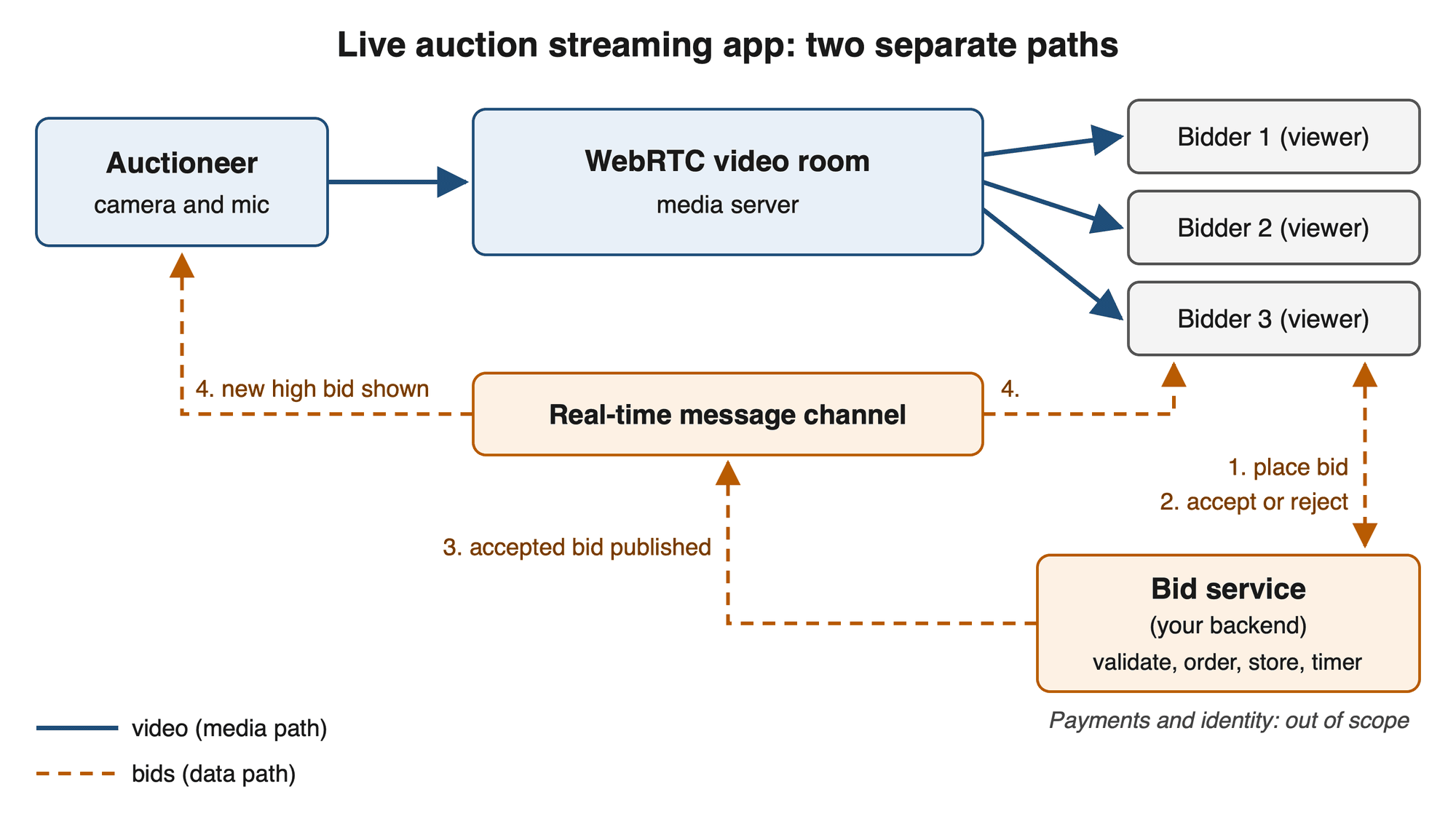
Video and bids travel separately: the room carries media, and the bid service decides the winner before anyone announces it.
In VideoSDK, this pattern is interactive live streaming (ILS): hosts join a room in SEND_AND_RECV mode, the audience joins in RECV_ONLY mode, and PubSub topics can carry bid messages.
Why bid timing decides between WebRTC and HLS
Bid timing decides the viewer protocol because a bidder whose video runs seconds behind the auctioneer is bidding on the past.
Standard HLS builds in delay. RFC 8216, section 6.3.3, says a live client SHOULD NOT start less than three target durations from the end of the playlist, and Apple's HLS authoring specification, item 7.5, says target durations SHOULD be 6 seconds. A player following both starts about 18 seconds or more behind the end of the playlist, before encoding and delivery delay.
The decision rule: if a lot's bid window is shorter than the viewer delay, bidders need the WebRTC path, and HLS suits a watch-only audience. The full trade-off is in how WebRTC and HLS differ on latency, scale and cost.
React quickstart: stream room, roles and viewers
The React quickstart code uses VideoSDK's React SDK, checked 29 Sep 2026: the example requests @videosdk.live/react-sdk ^1.1.1, the version npm tagged latest that day.
Set up the project
Create a new React App using the below command.
npm create vite@latest videosdk-ils-react-app -- --template react
cd videosdk-ils-react-app
Install the VideoSDK using the below-mentioned npm command. Make sure you are in your react app directory before you run this command.
npm install "@videosdk.live/react-sdk"yarn add "@videosdk.live/react-sdk"Your project structure should look like this.
   root
   ├── node_modules
   ├── public
   ├── src
   │    ├── API.js
   │    ├── App.jsx
   │    ├── App.css
   │    ├── main.jsx
   ├── package.json
   .    .
You are going to use functional components to leverage react's reusable component architecture. There will be components for users, videos, and controls (mic, camera, leave) over the video.
You will be working on these files:
- API.js: Responsible for handling API calls such as generating unique streamId and token
- App.jsx: Responsible for rendering container and joining the Live Stream.
Get started with API.js
Each participant needs a JSON Web Token (JWT). Dashboard tokens are for testing; in production, generate the token on your server so the API secret never reaches a browser.
createStream posts to the rooms endpoint and returns a roomId, which the quickstart calls a stream ID. Use one room per auction session.
// Generate your token at https://app.videosdk.live/api-keys and paste it below.
export const authToken = "";

// API call to create stream
export const createStream = async ({ token }) => {
  try {
    const res = await fetch(`https://api.videosdk.live/v2/rooms`, {
      method: "POST",
      headers: {
        authorization: `${token}`,
        "Content-Type": "application/json",
      },
      body: JSON.stringify({}),
    });

    if (!res.ok) {
      throw new Error(`Failed to create stream: ${res.status}`);
    }

    const { roomId } = await res.json();
    return roomId;
  } catch (error) {
    console.error("createStream failed", error);
    throw error;
  }
};
Initialize and join the live stream
The App component passes meetingId, mode, name, micEnabled, webcamEnabled and the token to MeetingProvider. The auctioneer joins in SEND_AND_RECV and bidders in RECV_ONLY; the initialize live stream guide says mic and webcam settings are ignored for audience participants.
import "./App.css";
import React, { useEffect, useRef, useState } from "react";
import {
  MeetingProvider,
  useMeeting,
  useParticipant,
  Constants,
} from "@videosdk.live/react-sdk";
import { authToken, createStream } from "./API";

// Join Screen - Handles joining or creating a stream
function JoinView({ initializeStream, setMode }) {
  const [streamId, setStreamId] = useState("");

  const handleAction = async (mode) => {
    // Sets the mode (Host or Audience) and initializes the stream
    setMode(mode);
    await initializeStream(streamId);
  };

  return (
    <div className="container">
      {/* Button to create a new stream */}
      <button onClick={() => handleAction(Constants.modes.SEND_AND_RECV)}>
        Create Live Stream as Host
      </button>
      {/* Input field for entering an existing Stream ID */}
      <input
        type="text"
        placeholder="Enter Stream Id"
        onChange={(e) => setStreamId(e.target.value)}
      />
      {/* Button to join as a host */}
      <button onClick={() => handleAction(Constants.modes.SEND_AND_RECV)}>
        Join as Host
      </button>
      {/* Button to join as an audience member */}
      <button onClick={() => handleAction(Constants.modes.RECV_ONLY)}>
        Join as Audience
      </button>
    </div>
  );
}

// Live Stream Container - Placeholder for the live stream container
function LSContainer(props) {
  return null;
}

// Main App Component - Handles the app flow and live stream lifecycle
function App() {
  const [streamId, setStreamId] = useState(null); // Holds the current stream ID
  const [mode, setMode] = useState(Constants.modes.SEND_AND_RECV); // Holds the current user mode (Host or Audience)

  const initializeStream = async (id) => {
    if (!authToken) {
      console.error("PLEASE PROVIDE TOKEN IN API.js FROM app.videosdk.live");
      return;
    }
    // Creates a new stream if no ID is provided or uses the given stream ID
    const newStreamId = id || (await createStream({ token: authToken }));
    setStreamId(newStreamId);
  };

  const onStreamLeave = () => setStreamId(null); // Resets the stream state on leave

  return authToken && streamId ? (
    // Provides the stream context to the application
    <MeetingProvider
      config={{
        meetingId: streamId,
        micEnabled: true, // Enables microphone by default
        webcamEnabled: true, // Enables webcam by default
        name: "John Doe", // Default participant name
        mode,
      }}
      token={authToken}
    >
      {/* Renders the live stream container if a stream is active */}
      <LSContainer streamId={streamId} onLeave={onStreamLeave} />
    </MeetingProvider>
  ) : (
    // Renders the join view if no stream is active
    <JoinView initializeStream={initializeStream} setMode={setMode} />
  );
}

export default App;
LSContainer is a placeholder that returns nothing, so the app compiles at this step. The next step replaces it with the full component.
Set up the live stream view and container
This step implements the Live Stream View and Container components to manage and display HOST participants:
- StreamView Component: Displays participants in
SEND_AND_RECVmode using the Participant component. Includes LSControls for managing the session. - LSContainer Component: Manages joining the stream via join from useMeeting. Shows the StreamView after joining or a
Join Streambutton otherwise.
// Component to manage live stream container and session joining
function LSContainer({ streamId, onLeave }) {
  const [joined, setJoined] = useState(false); // Track if the user has joined the stream

  const { join } = useMeeting({
    onMeetingJoined: () => setJoined(true), // Set `joined` to true when successfully joined
    onMeetingLeft: onLeave, // Handle the leave stream event
    onError: (error) => alert(error.message), // Display an alert on encountering an error
  });

  const handleJoin = async () => {
    try {
      await join();
    } catch (error) {
      console.error("Failed to join stream", error);
    }
  };

  return (
    <div className="container">
      <h3>Stream Id: {streamId}</h3>
      {/* Show the stream view if joined, otherwise display the "Join Stream" button */}
      {joined ? (
        <StreamView />
      ) : (
        <button onClick={handleJoin}>Join Stream</button>
      )}
    </div>
  );
}

// Component to display the live stream view
function StreamView() {
  const { participants } = useMeeting(); // Access participants using the VideoSDK useMeeting hook

  return (
    <div>
      <LSControls /> {/* Render live stream controls */}
      {[...participants.values()]
        .filter((p) => p.mode === Constants.modes.SEND_AND_RECV) // Filter participants in SEND_AND_RECV mode
        .map((p) => (
          <Participant participantId={p.id} key={p.id} /> // Render each participant's view
        ))}
    </div>
  );
}

function Participant() {
  return null;
}

function LSControls() {
  return null;
}
Participant and LSControls are placeholders at this step. Replace each one with the full version from the next two steps rather than adding a second function with the same name.
StreamView renders only SEND_AND_RECV participants, so bidders see the auctioneer, never each other.
Render each participant's view
This step component displays an individual participant's audio and video streams. It uses the useParticipant hook to retrieve the participant's data (e.g., webcam and mic status) and dynamically sets up the streams with useEffect. Audio and video elements are rendered based on the availability of the streams.
// Component to render audio and video streams for a participant
function Participant({ participantId }) {
  const { webcamStream, micStream, webcamOn, micOn, isLocal, displayName } =
    useParticipant(participantId);

  const audioRef = useRef(null); // Reference for audio element
  const videoRef = useRef(null); // Reference for video element

  // Function to attach or clear the stream
  const setupStream = (stream, ref, condition) => {
    if (ref.current && stream) {
      ref.current.srcObject = condition
        ? new MediaStream([stream.track])
        : null;
      condition && ref.current.play().catch(console.error);
    }
  };

  useEffect(() => setupStream(micStream, audioRef, micOn), [micStream, micOn]); // Handle mic stream
  useEffect(
    () => setupStream(webcamStream, videoRef, webcamOn),
    [webcamStream, webcamOn]
  ); // Handle webcam stream

  return (
    <div>
      <p>
        {displayName} | Webcam: {webcamOn ? "ON" : "OFF"} | Mic:{" "}
        {micOn ? "ON" : "OFF"}
      </p>
      <audio ref={audioRef} autoPlay muted={isLocal} /> {/* Play mic stream */}
      {webcamOn && (
        <video
          ref={videoRef}
          autoPlay
          muted={isLocal}
          height="200"
          width="300"
        /> /* Display webcam stream */
      )}
    </div>
  );
}
Implement live stream controls
LSControls adds mic and camera toggles for hosts, plus leave and mode-switch buttons for everyone.
// Component for managing stream controls
function LSControls() {
  const { leave, toggleMic, toggleWebcam, changeMode, meeting } = useMeeting(); // Access methods
  const currentMode = meeting.localParticipant.mode; // Get the current participant's mode

  const handleLeave = async () => {
    try {
      await leave();
    } catch (error) {
      console.error("Failed to leave stream", error);
    }
  };

  const handleToggleMic = async () => {
    try {
      await toggleMic();
    } catch (error) {
      console.error("Failed to toggle mic", error);
    }
  };

  const handleToggleWebcam = async () => {
    try {
      await toggleWebcam();
    } catch (error) {
      console.error("Failed to toggle webcam", error);
    }
  };

  const handleChangeMode = async () => {
    const nextMode =
      currentMode === Constants.modes.SEND_AND_RECV
        ? Constants.modes.RECV_ONLY
        : Constants.modes.SEND_AND_RECV;
    try {
      await changeMode(nextMode);
    } catch (error) {
      console.error("Failed to change mode", error);
    }
  };

  return (
    <div className="controls">
      {/* Button to leave the stream */}
      <button onClick={handleLeave}>Leave</button>

      {/* Show mic and webcam toggles if in SEND_AND_RECV mode */}
      {currentMode === Constants.modes.SEND_AND_RECV && (
        <>
          <button onClick={handleToggleMic}>Toggle Mic</button>{" "}
          {/* Mute/unmute mic */}
          <button onClick={handleToggleWebcam}>Toggle Camera</button>{" "}
          {/* Enable/disable Camera */}
        </>
      )}

      {/* Button to switch between Host Mode and Viewer Mode */}
      <button onClick={handleChangeMode}>
        {currentMode === Constants.modes.SEND_AND_RECV
          ? "Switch to Audience Mode"
          : "Switch to Host Mode"}
      </button>
    </div>
  );
}
Add the styles
The Vite template creates its own App.css, which the app runs with. To match the quickstart's layout, replace the contents of src/App.css with the quickstart's styles.
/* App.css */
body {
  margin: 0;
  font-family: Arial, sans-serif;
  background-color: #f9f9f9;
}

.container {
  display: flex;
  flex-direction: column;
  align-items: center;
  justify-content: center;
  text-align: center;
  height: 100vh;
  gap: 20px;
  padding: 20px;
  background: #fff;
  border-radius: 8px;
  box-shadow: 0 2px 4px rgba(0, 0, 0, 0.1);
}

button {
  background: #007bff;
  color: #fff;
  border: none;
  padding: 10px 16px;
  border-radius: 5px;
  cursor: pointer;
  transition: 0.3s;
}

button:hover {
  background: #0056b3;
}

input {
  width: 60%;
  padding: 10px;
  border: 1px solid #ccc;
  border-radius: 5px;
}

.controls {
  display: flex;
  gap: 10px;
}

video,
audio {
  margin: 10px 0;
  border-radius: 8px;
}
Run the app
Start the development server with the dev script from the Vite template, then open the local address it prints. Create the stream as host in one browser tab and join it as audience in a second tab with the same stream ID.
npm run devFix three things before production. The token sits in client code (API.js, line 2). Joining from JoinView with an empty ID creates a new stream. Most important for an auction, each client picks its own mode: "Join as Host" and "Switch to Host Mode" both let any bidder go on camera without host approval. The quickstart says your server must decide who joins as a host, and VideoSDK's authentication docs state that no token permission restricts publishing media or PubSub, so enforce that rule in your own app and server.
The full example is in the react-ils folder on GitHub, explained in VideoSDK's React interactive live streaming quickstart. Not using React? Use the JavaScript interactive live streaming quickstart.
How to handle real-time bids without a wrong winner
Real-time bids stay correct only when one component decides them. Each bid goes to your bid service over HTTPS. The service checks identity, that the lot is open and that the amount clears the increment, then writes the bid with an atomic compare-and-set on the current high bid, so two equal bids cannot both win. An idempotency key stops a retried request from counting twice. The lot timer runs here, never in a browser.
Only an accepted bid gets announced. VideoSDK's PubSub guide documents usePubSub(topic), which returns publish. publish() takes a string message, an options object and an optional payload object for structured data such as lot ID and amount. With persist: true, a bidder who joins mid-lot receives earlier bids through onOldMessagesReceived.
The virtual gifts guide documents the same order: the client calls your backend, the backend authenticates the user and processes the transaction (the guide recommends storing it), and only on success does the client publish. Engineering reasoning from that pattern, not a VideoSDK statement: a client-published message is only as trustworthy as its client, so treat it as a display hint and read the current high bid from your service before showing "you are winning".
What a live auction costs to stream at scale
Streaming cost for bidders in an ILS room is viewers × minutes × rate. VideoSDK's pricing page lists ILS viewer minutes at 720p at $0.002 per viewer minute on Pay-As-You-Go, as of 29 Sep 2026.
Worked example, with hypothetical inputs: 150 bidders watching a 90-minute sale at 720p use 150 × 90 = 13,500 ILS viewer minutes, or $27.00 at $0.002 per viewer minute, as of 1 Oct 2026. That excludes the auctioneer's own minutes.
A watch-only HLS audience instead costs HLS viewer minutes plus 720p HLS encoding at $0.04 per livestream minute, or $2.40 an hour, as of 29 Sep 2026.
The VideoSDK quotas and limits page caps concurrent viewers per organization and per room, and sells extra viewer packs of 200 viewers at $20 per pack per month, as of 1 Oct 2026.
Glossary
Interactive live streaming (ILS): Live streaming in which the audience joins the same room as the hosts, so a viewer can be brought on stage: a host sends an invitation and the viewer's client switches its own mode.
Room ID (stream ID): The room identifier, in the format xxx-yyy-zzz, that the quickstart namesstreamIdand passes toMeetingProviderasmeetingId.
SEND_AND_RECV and RECV_ONLY: The two participant modes VideoSDK's ILS guides use: hosts publish and receive media, and audience members only receive it. The SDK also has a third mode, SIGNALLING_ONLY, which neither sends nor receives media.PubSub (publish-subscribe): Messaging in which clients publish to named topics and subscribers to a topic receive the messages. In VideoSDK,sendOnlycan limit a message to listed participants, andonMessageDropreports messages a client could not receive.
HTTP Live Streaming (HLS): A segment-based delivery protocol defined in RFC 8216. See what HTTP Live Streaming is.
Key takeaways
- A live auction streaming app runs a WebRTC video room for the auctioneer and a bid service that alone accepts bids; broadcast messages only display its decisions.
- Put bidders on WebRTC whenever a lot's bid window is shorter than the viewer delay; HLS suits a watch-only audience.
- The quickstart's client-side token and its self-service host buttons ("Join as Host" and "Switch to Host Mode") must change before production.
- Budget streaming as viewers × minutes × rate, and confirm your viewer ceiling before a large sale.
Start from the quickstart, move token generation to your server, then build the bid service. For the ILS modes and guides used here, read VideoSDK's React interactive live streaming docs; a new account comes with a $20 credit.
Frequently asked questions
What are the tools for hosting live auctions online?
Hosting live auctions online takes four kinds of tools: a video layer that streams the auctioneer, a bid service that accepts bids and runs lot timers, payments and identity checks, and the bidder apps. Auction houses that prefer not to build can buy live auction software; teams that build can take the video layer from a video API and write the bid service themselves.
How do you stop bid sniping at the end of a lot?
Use a soft close, also called extended bidding: the bid service pushes the lot's closing time back whenever a bid lands near the end. AuctionNinja's help center, for example, extends a lot when a bid arrives in its last five minutes. Run the timer on the server and broadcast each new closing time.
Can a bidder be brought on camera during a live auction?
Yes, with code on both sides. VideoSDK's change mode guide says changeMode() only changes the mode of the participant who calls it. The host publishes an invitation on a PubSub topic addressed to the bidder, whose client subscribes and calls changeMode("SEND_AND_RECV") itself. Validate invitations on your server so a bidder cannot forge one. A token cannot restrict mode, so a modified client can still call changeMode() on its own; every client receives a mode-changed event, and the auctioneer's app can remove anyone who switches without an invitation.